
How do you create a video clip in Craze?
You create a video clip in Craze from the Video tab on the home page, or from Make inside a project.
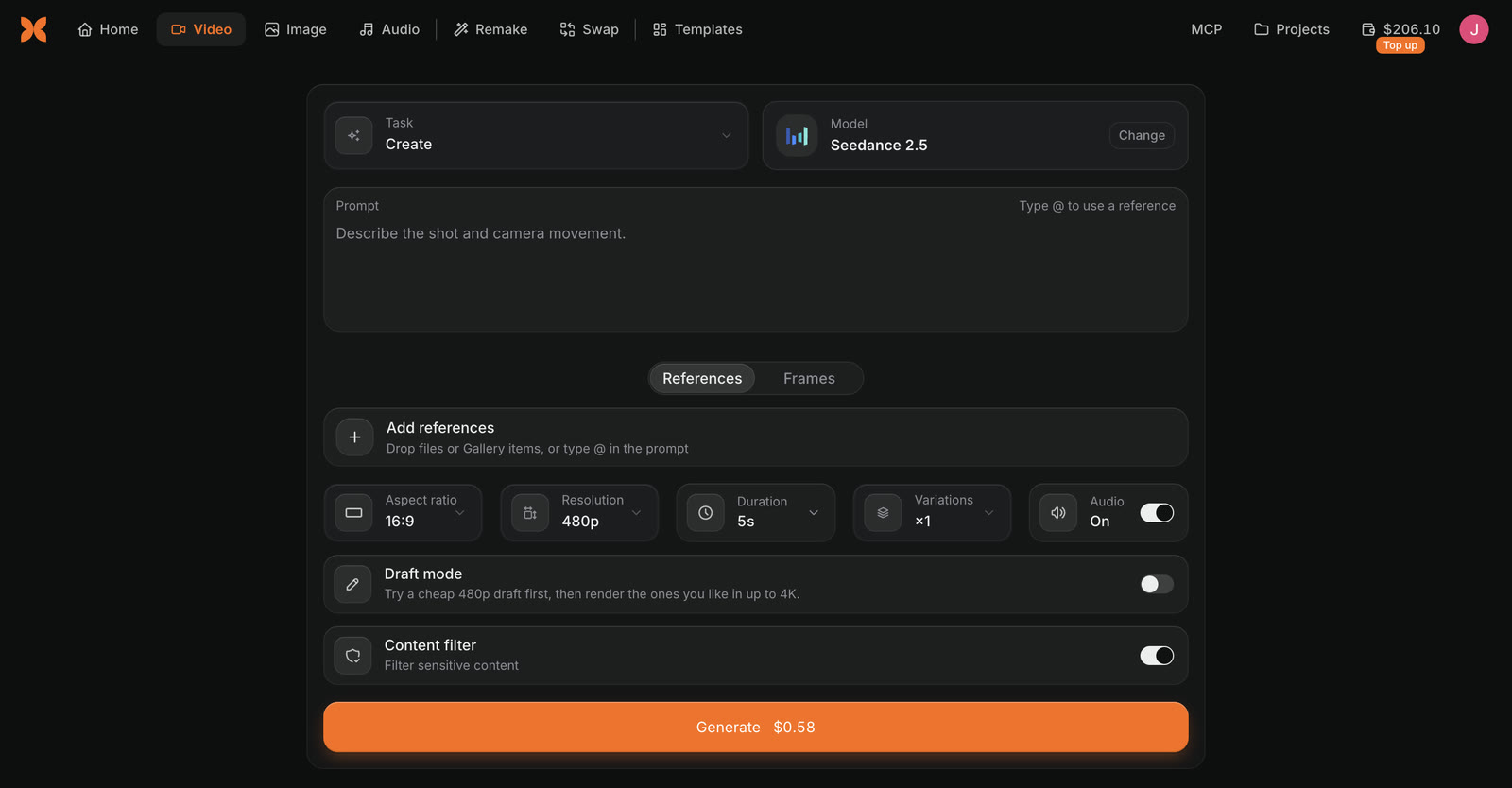
- Open the Video tab on the Craze home page, or click Make in a project and switch to Video.
- Leave Task on Create.
- Check the Model, or click Change to pick another.
- Describe the shot and the camera movement in Prompt.
- Set the aspect ratio, resolution, duration and variations.
- Click Generate. The button shows the price.
The clip appears in the project's Gallery. To make a whole video with several shots, music and edits, describe it to the Craze agent instead; see make your first video.
Which video models does Craze have?
Craze has many video models, and the model list in the Video tab shows the ones that can do the task you picked. Examples include Seedance 2.5, Kling 4, Veo 3.1 and Gemini Omni Flash. Models differ in look, length, resolution, sound and price.
See the Craze models page for every video model and its prices.
How do you turn a picture into a video in Craze?
Craze turns a picture into a video with frames.
- In the Craze Video tab, switch from References to Frames.
- Add your picture as the Start frame.
- Optionally add an End frame, and Craze generates the motion between the two.
- Describe what happens in the prompt and click Generate.
If the End frame says "Start frame only on this model", the chosen model takes a start frame only. Some models also make shorter clips when you give them an end frame. A quicker way to start is Animate in the More menu of any image in the Craze Gallery, which opens the Video tab with that image as the start frame.
How do you use reference pictures, clips or audio in a Craze video?
References let a Craze video keep a character, a product or a look across shots.
- In the Craze Video tab, keep References selected.
- Click Add references, or drop files or Gallery items onto it.
- In the prompt, type
@and choose a reference, for example "@hero walks into @cafe". - Click Generate.
Models such as Seedance 2.5, Kling 4 and Wan 3.0 take references. Some take only pictures, others also take clips and audio; below the references, Craze says how many of each the chosen model takes. A Craze video uses frames or references, not both.
How do you set the length, shape and quality of a Craze video?
The Craze Video tab has these settings, and their options depend on the model:
| Setting in the Craze Video tab | What it sets |
|---|---|
| Aspect ratio | The shape, such as 16:9, 9:16 or 1:1 |
| Resolution | The quality, such as 720p, 1080p or 4K where the model offers it |
| Duration | How long the clip is, in seconds |
| Variations | How many clips one Generate makes, from 1 to 4 |
| Audio | Whether the clip has sound, on models where sound is optional |
| Draft mode | A cheap 480p draft first, on models that offer it |
The price on the Generate button updates with each setting. Some models always generate sound, and then there is no Audio switch.
How do you use a video link in Craze?
When a Craze video model takes a video, as a reference or as the clip to edit or extend, you can paste a link instead of uploading the file. Paste the link to a public video into the "Paste a video link" box and wait for Craze to download it. Some sites block downloads; if Craze cannot add the link, download the video yourself and upload the file.
What is the content filter in Craze video?
Seedance video models in Craze have a Content filter switch, which is on by default. Workspaces on the Ultra or Max plan can turn it off for scenes such as fights or horror; on other plans it stays on. With the content filter off, Craze still does not make genuinely harmful content. See the Craze pricing page for plans.