
Where is sound on the Craze timeline?
Sound sits on the audio tracks at the bottom of the Craze timeline, named A1, A2 and so on, below the picture tracks. Each audio clip shows its waveform, so you can see where the speech, beats and silences are. A video with sound usually has a linked audio clip right below it, which moves and trims together with the video.
How do you mute or solo a track in Craze?
Each Craze audio track has a speaker button at its left end. Click it to mute or unmute the whole track. Right-click a track's name for more:
- Mute Track silences the track.
- Solo Audio (Preview Only) plays only this track's sound while you preview, so you can hear it on its own.
- Solo Visuals (Preview Only) shows only this track's picture while you preview.
- Lock Track stops the track from being edited by accident.
Solo only affects the preview, not the exported video. To turn solo off, click Clear solo on the track, or choose the same solo option again.
How do you change the volume of a clip in Craze?
To change a clip's volume in Craze:
- Select the clip on the Craze timeline.
- Open Properties in the media panel.
- In the Audio part of the Media section, change Volume, or switch on Mute to silence the clip.
To change the volume of several clips at once, set one clip's volume, copy it with ⌘C, select the others, press ⌥⌘V (Ctrl+Alt+V on Windows) and tick Volume in Paste Attributes.
How do you fade audio in or out in Craze?
To fade a clip's sound in Craze, select the clip, open Properties, and set Fade in and Fade out in the Audio part of the Media section, in seconds. A fade in starts the clip silent and brings it up to full volume; a fade out takes it down to silence at the end.
How do you change the volume during a clip in Craze?
Volume points in Craze change a clip's volume at specific moments, for example to lower music while someone speaks.
- Move the playhead to where the volume should change.
- Select the audio clip and press
⌥V(Alt+Von Windows) to add a volume point at the playhead. Or hold⌘(Ctrl) and click the volume line on the clip. - Drag a volume point up to make that moment louder, or down to make it quieter.
Craze changes the volume smoothly from one point to the next. The clip's volume points are also listed under Volume points in Properties.
How do you add sound effects in Craze?
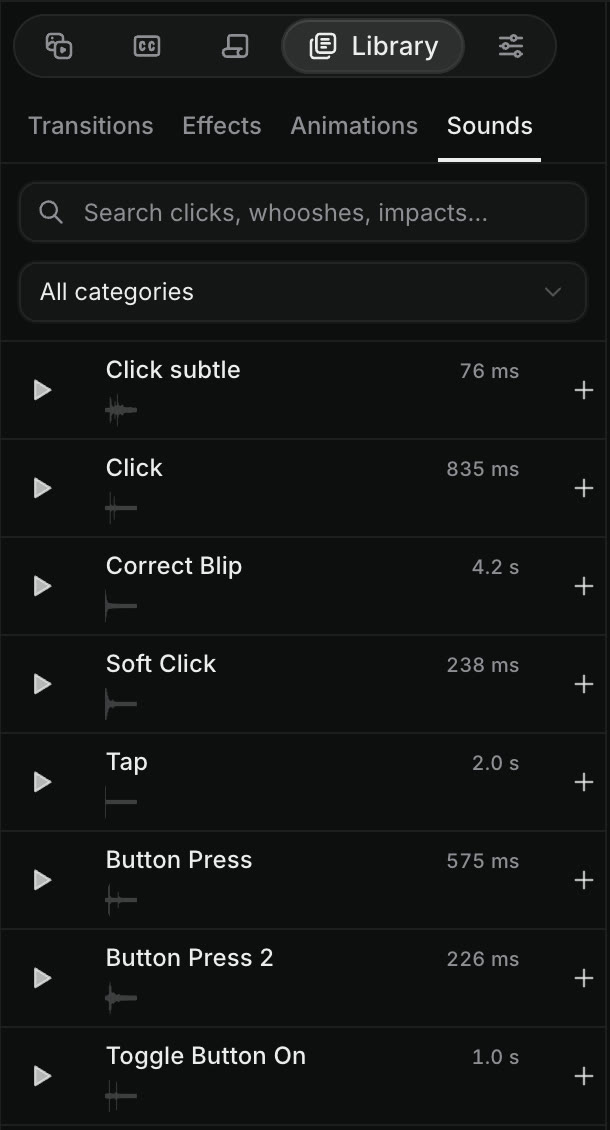
The Craze Library has a sound effects collection.
- Open Library, then Sounds, in the media panel.
- Type in the search box, such as "whoosh" or "click", or pick a category from All categories.
- Click play on a sound to preview it.
- Move the playhead to where the sound should start, and click Add to timeline at playhead.
Craze puts the sound on an audio track at the playhead. You can also add your own music or voice-over: click Upload in Assets, then add the file to the timeline from its menu.
How do you separate sound from video in Craze?
A video clip with sound in Craze usually comes with a linked audio clip. To move or trim the sound on its own, right-click the clip and choose Unlink. Craze then treats the picture and the sound as separate clips. To join them again, select both and choose Link.
Can the Craze agent make music, voice-overs and sound effects?
Yes. The Craze agent can generate music, voice-overs and sound effects with AI and place them on the timeline. Ask in the chat, for example "add upbeat background music and lower it under the voice-over" or "add a whoosh on every cut". You can also make sounds yourself from the Audio tab on the Craze home page or in a project's Make panel. The Craze models page lists the audio models and their prices.