
What do you need to make short clips from a talking-head recording in Craze?
To make short clips in Craze, you need a recording of someone speaking: an interview, a podcast, a webinar, a lesson or a straight-to-camera video. Get it into a Craze project in one of three ways:
- Attach it in the Craze chat box with Attach a file, or drag it into the chat box.
- Upload it from the Assets panel of the Craze editor with Upload.
- Paste a link to a public video and ask the Craze agent to download it. The Craze agent downloads public videos up to 10 minutes long and 512 MB.
Names and roles of the speakers help, so the Craze agent can spell them right in lower thirds.
What should you send the Craze agent to cut short clips?
Tell the Craze agent how many clips you want, how long each should be, where they will be posted, and what to add. For example:
Here's a 40-minute interview with our CEO, Maya Chen. Find the three strongest moments and make each into a 30 to 45 second clip for Reels, 9:16. Remove filler and false starts, add bold captions, a lower third with her name and role the first time she appears, and a pull quote on the best line.
The Craze agent reads the transcript of the recording to find claims, numbers, names and quotable lines. You can ask it to list the moments it picked before it cuts them. If you already know the moments, name them:
Make a clip from where she talks about the launch, roughly 12:30 to 13:20.
What does the Craze agent add to a talking-head clip?
The Craze agent packages a talking-head clip with timed overlays synced to what is said. Craze can add:
| Overlay | What it shows |
|---|---|
| Lower third | A speaker's name and role, once, when they first appear |
| Kinetic title | A section or chapter claim |
| Pull quote | A word-for-word line worth isolating |
| Data callout | One number, its unit and its label |
| Side panel | A short list or comparison |
| Picture-in-picture or cutaway | Something the speaker mentions, such as a product or a screen |
The Craze agent shows one overlay at a time, keeps overlays clear of the speaker's face, and keeps the speaker's audio running under any cutaway. Captions go on the "Captions" track, so you can restyle and fix them like any other Craze captions.
How does Craze make a wide recording vertical?
Craze makes a 16:9 recording vertical by tracking the speaker and reframing the shot to follow them. Ask the Craze agent, for example "make this clip 9:16 and keep her in frame". The Craze agent puts the vertical version in a new sequence, tracks the speaker, and moves and zooms the picture so the speaker stays in shot, with room left for titles and captions. The framing is saved as ordinary position and scale keyframes, which you can adjust in Animate mode on the Craze timeline. Tracking the speaker uses credits, and the Craze agent tells you the estimated cost first on long footage.
What should you check in the Craze plan for talking-head clips?
Before the Craze agent starts, check its plan for:
- The moments. The start and end of each clip and what is said in it.
- The length of each clip once filler is removed.
- The overlays. Which lower thirds, titles, pull quotes and callouts go where, and the spelling of names.
- The shape. 9:16 for Reels, TikTok and Shorts, or another shape you asked for.
- The cost of anything paid, such as transcription and tracking the speaker.
Reply in the chat to change the plan. See questions and plans from the Craze agent for how approving works.
How do you trim a Craze talking-head clip by deleting words?
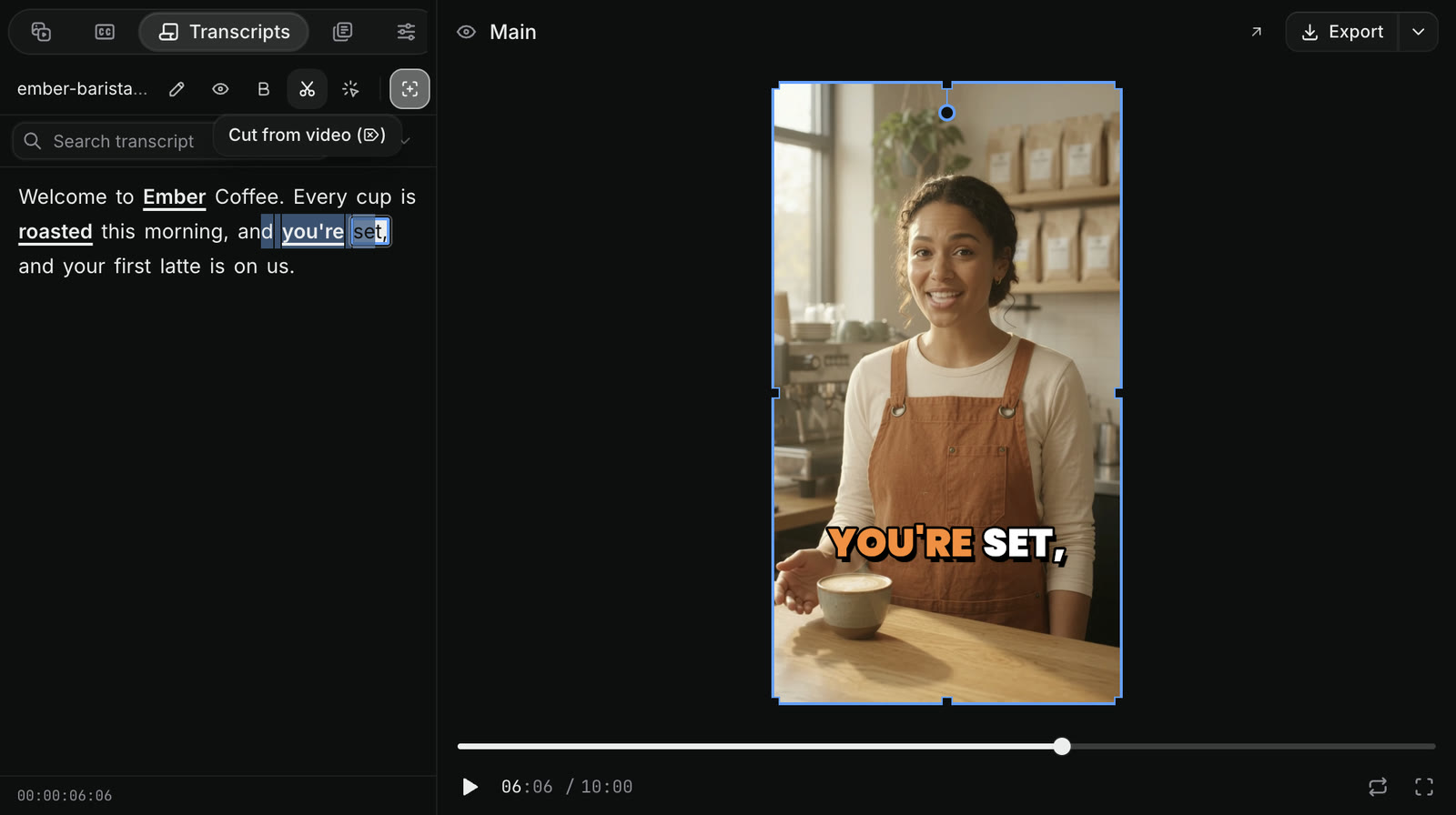
Craze lets you trim a talking-head clip like a document, from its transcript.
- Select the clip on the Craze timeline.
- Open Transcripts in the media panel.
- Select the words you want to remove.
- Click Cut from video (the scissors), or press
Delete, and confirm with Cut.
Craze removes those words and the footage under them, picture and sound together, and closes the gap. To keep a word in the audio but out of the captions, select it and click Hide from captions instead. See captions and transcripts in Craze for every transcript tool.
How do you export each Craze talking-head clip?
The Craze agent can keep each short clip as its own sequence, shown as a tab above the timeline, and each Craze export renders one sequence.
- Click the tab of the clip you want above the Craze timeline.
- Click Export at the right end of the player's header, or right-click the tab and choose Export….
- Choose Video and MP4, set the resolution and quality, and click Export MP4.
When a clip has captions, the export dialog can also save them as SRT or VTT subtitle files. See sequences in Craze and how to export a video from Craze.