
How do you edit an image with a prompt in Craze?
The Edit task in the Craze Image tab changes a picture you already have.
- Open the Image tab on the Craze home page, or click Make in a project and switch to Image.
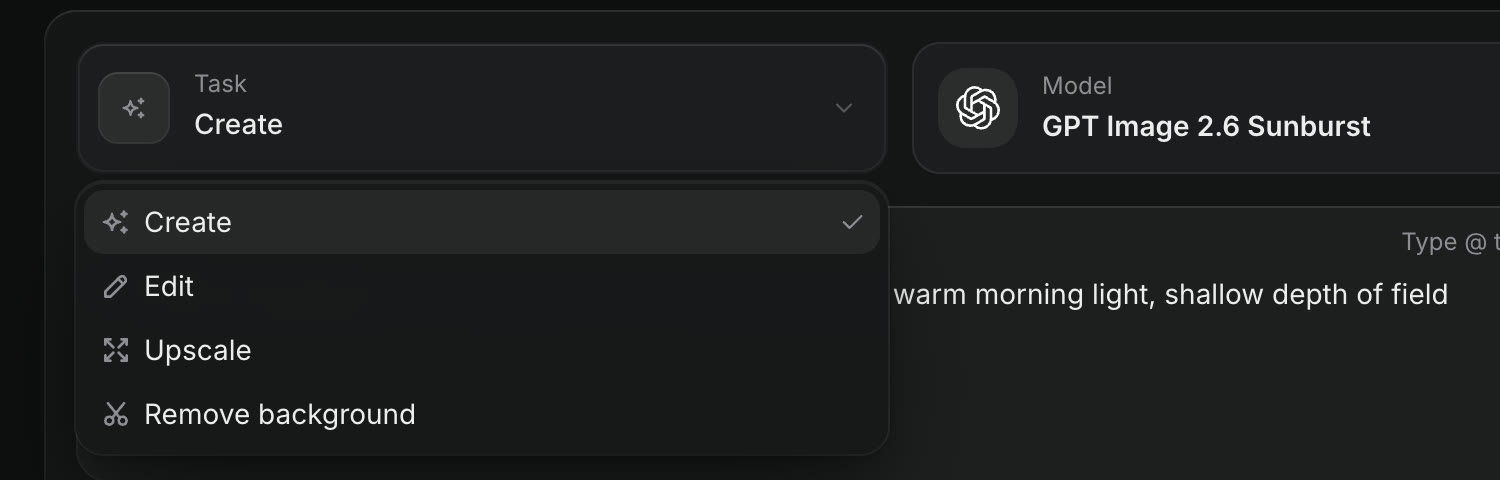
- Set Task to Edit.
- Add the picture with Add references.
- Describe the edit, for example "make the jacket red".
- Click Generate. The button shows the price.
Models such as Nano Banana Pro, GPT Image 2.6 Sunburst, Seedream 5 Pro and FLUX Kontext edit images. In a project, Edit in the More menu of an image in the Gallery opens this task with the image already added.
How do you edit a video with a prompt in Craze?
The Edit task in the Craze Video tab changes a clip you already have, keeping what you don't mention.
- Open the Video tab on the Craze home page, or click Make in a project and switch to Video.
- Set Task to Edit.
- Add the clip as the Source video, by upload, from the project, or with a public video link.
- Describe the change, for example "make it night, keep the camera move".
- Click Generate.
Models such as Seedance 2.5, Kling 4 and Gemini Omni Flash edit video. Some of them also take pictures as references, which is how you swap a product or prop into footage: add the picture and describe what to replace and what to keep.
How do you cut a new scene into a video in Craze?
Some Craze video models, such as MiniMax H3 Max, can put a new scene into the middle of a clip.
- In the Craze Video tab, set Task to Edit and choose a model with scene insertion, such as MiniMax H3 Max.
- Add the Source video.
- Open Replace and drag its two handles, Cut in and Resume, to mark the stretch the new scene plays in place of.
- Describe the new scene, for example "a dog darts through the frame and out the left side", and set the Scene length.
- Click Generate.
The new scene plays in place of the marked stretch, then the video carries on. If the clip is too long for the model, Craze says how long it can be, so trim it first.
How do you make a video clip longer in Craze?
The Extend task in the Craze Video tab continues a clip from where it ends.
- In the Craze Video tab, set Task to Extend.
- Add the Video to extend.
- Describe What happens next, for example "she turns and walks out of frame".
- Set the duration of the new part and click Generate.
Models such as Seedance 2.5, Veo 3.1 and PixVerse v6 extend video. In a project, Extend in the More menu of a video in the Gallery opens this task with the clip already added.
How do you upscale an image in Craze?
The Upscale task in the Craze Image tab makes a picture larger and sharper.
- In the Craze Image tab, set Task to Upscale.
- Add the Image.
- Choose how many times larger it gets in the Upscale setting, such as 2×.
- Click Generate.
Craze upscales images with models such as Topaz Upscale and SeedVR2 Upscale. The Upscale task is for images; for a sharper video, generate or render it at a higher resolution, for example with Draft mode and Render final.
What can you make from a Gallery item in Craze?
Every image, video and audio clip in the Craze Gallery has a "Make something from this" list in its More menu. Each step opens Make with the item already in place, so you only add the rest and click Generate.
| Gallery item in Craze | Next steps |
|---|---|
| Image | Animate, Edit, Upscale, Remove background, Make it talk, Drive with motion |
| Video | Edit, Extend, Lip sync, Dub, Add sound |
| Audio | Change voice, Dub, Lip sync onto a video, Voice a photo |
Craze shows only the steps a model can do, so the list can be shorter than this table. See the Craze models page for every model and its prices.