Craze
ModelsPricingMCPBlog

Search the docs

Find an article or a question in the Craze docs.

Get started

  • What is Craze?
  • Make your first video
  • A tour of the Craze app
  • Use Craze on your phone
  • Words to know

Work with the Craze agent

  • Describe your video to the Craze agent
  • Answer questions and approve the plan
  • Point at what to change with Tweak
  • Mention files, voices and projects
  • Choose the agent's tier: Efficient, Balanced or Power
  • What the Craze agent can do
  • Go back to an earlier version
  • Write a great brief

Create images, video and sound

  • Make media without the agent
  • Create an image
  • Create a video clip
  • Try a draft first
  • Edit, extend and upscale
  • Remove a background
  • Lip sync and talking photos
  • Motion transfer
  • Voiceovers and voices
  • Music and sound effects
  • Dub a video into another language

Start from a video

  • Start from a template
  • Remake a video
  • Swap people in a video

Edit on the timeline

  • Timeline basics
  • Sequences
  • Trim, split and change speed
  • Captions and transcripts
  • Transitions
  • Effects
  • Animations and keyframes
  • Text and fonts
  • Masks and cutouts
  • Audio
  • Keyboard shortcuts

Your media

  • Upload your files
  • Use the Gallery

Export and share

  • Export a video
  • Share a video with a link

Recipes

  • Make a product ad from product photos
  • Make a UGC-style creator video
  • Turn a talking-head recording into short clips
  • Make a music video cut to the beat

AI models

  • Which AI model should you use in Craze?

Plans and credits

  • Plans and credits

Use Craze from your agent

  • Connect your AI agent to Craze

Account and help

  • Your account and workspace
  • Fix a problem
Browse the docs

Get started

  • What is Craze?
  • Make your first video
  • A tour of the Craze app
  • Use Craze on your phone
  • Words to know

Work with the Craze agent

  • Describe your video to the Craze agent
  • Answer questions and approve the plan
  • Point at what to change with Tweak
  • Mention files, voices and projects
  • Choose the agent's tier: Efficient, Balanced or Power
  • What the Craze agent can do
  • Go back to an earlier version
  • Write a great brief

Create images, video and sound

  • Make media without the agent
  • Create an image
  • Create a video clip
  • Try a draft first
  • Edit, extend and upscale
  • Remove a background
  • Lip sync and talking photos
  • Motion transfer
  • Voiceovers and voices
  • Music and sound effects
  • Dub a video into another language

Start from a video

  • Start from a template
  • Remake a video
  • Swap people in a video

Edit on the timeline

  • Timeline basics
  • Sequences
  • Trim, split and change speed
  • Captions and transcripts
  • Transitions
  • Effects
  • Animations and keyframes
  • Text and fonts
  • Masks and cutouts
  • Audio
  • Keyboard shortcuts

Your media

  • Upload your files
  • Use the Gallery

Export and share

  • Export a video
  • Share a video with a link

Recipes

  • Make a product ad from product photos
  • Make a UGC-style creator video
  • Turn a talking-head recording into short clips
  • Make a music video cut to the beat

AI models

  • Which AI model should you use in Craze?

Plans and credits

  • Plans and credits

Use Craze from your agent

  • Connect your AI agent to Craze

Account and help

  • Your account and workspace
  • Fix a problem
Docs/Use Craze from your agent

Connect your AI agent to Craze

Craze MCP connects ChatGPT, Claude, Cursor or Claude Code to your Craze workspace, so your own AI agent can generate, understand, edit and export video in your Craze projects.

Last updated November 18, 2026

What is Craze MCP?

Craze MCP is a connection that lets your own AI assistant use Craze. MCP (Model Context Protocol) is the standard way AI assistants plug into other tools. Once you connect it, the assistant you already work in can generate media, understand footage, edit projects and export finished video in your Craze workspace, without you opening the Craze app.

Craze MCP works with the same projects, files and credits as the Craze app. Anything your agent makes shows up in your Craze projects, and anything in your Craze projects is available to your agent.

Which AI agents can connect to Craze?

Craze MCP has setup steps for four AI clients:

AI clientHow you add Craze
ChatGPTA developer-mode app in ChatGPT, with Developer mode turned on
ClaudeA custom connector in Claude's Connectors settings
CursorAn entry for Craze in Cursor's MCP config file
Claude CodeOne command in your terminal

Whether your client can add Craze can depend on its version, your plan with that client and your company's policy. For example, ChatGPT needs Developer mode and access to custom MCP apps, and on Claude Team and Enterprise an Owner adds the connector first.

How do you connect your agent to Craze?

You connect an AI agent to Craze by adding the Craze MCP URL to your AI client and signing in to Craze once. The exact steps for each client, with copy buttons for the URL, config and commands, are on the Craze MCP setup page.

  1. Open the Craze MCP setup page, or choose Use Craze via MCP in the account menu of the Craze app.
  2. Pick your client's tab: ChatGPT, Claude, Cursor or Claude Code.
  3. Add the Craze MCP URL to your client as the steps describe.
  4. Sign in to Craze when your browser opens, and allow the connection.
  5. Turn Craze on in your client if it asks you to.

You need a Craze account to finish the sign-in. No API key and no Craze download are needed.
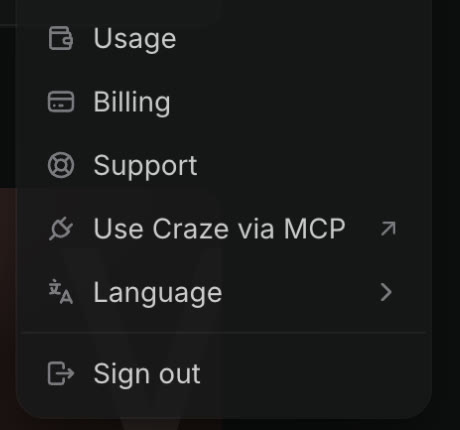
The Craze account menu, open, with Usage, Billing, Support, Use Craze via MCP, Language and Sign out.
Use Craze via MCP in the Craze account menu opens the setup page.

How do you check that Craze MCP is connected?

The Craze MCP setup page gives each client a verification prompt to paste into your agent. The prompt asks your agent to call only Craze's connection check, which reports whether the connection is active. The check is read-only: it does not start a generation or an export.

What can your agent do with Craze?

Through Craze MCP, your AI agent can do the same production work as the Craze agent in the app:

  • Create a Craze project, list your projects and work inside an existing one.
  • Upload your files and download finished media.
  • Generate video, images, voice, music and sound effects with the AI models in Craze.
  • Watch and listen to footage to understand what is in it.
  • Edit the timeline, add captions and transitions, and reframe video.
  • Export the finished video.
  • Check your Craze credit balance and plan.

After an edit, your agent can give you a link to the project in the Craze app, so you can watch the result in the player before anyone exports it.

Tip

Your agent can also show you what it plans to make and the price of each AI model before it generates, just like the Craze agent in the app. Ask it to check with you before it spends credits.

Does your agent use your Craze credits?

Yes. Work your agent does through Craze MCP uses your Craze workspace's normal credits, the same as work in the Craze app. That includes generating media and other production and compute work, not only generations. Your agent does not ask Craze again before each operation, so connecting gives it the same reach into your projects and credits that you have. See plans and credits in Craze for how credits work.

How do you disconnect or reconnect your agent in Craze?

You manage connected agents on the Connected agents page of the Craze app, at craze.ai/app/connections.

  1. Sign in to Craze and go to craze.ai/app/connections.
  2. Find the agent in the list. Each one is shown as Agent 1, Agent 2 and so on, marked Connected or Disconnected.
  3. Click Disconnect to stop that agent using Craze, or Reconnect to turn a disconnected one back on.

If you have never connected an agent, the page says "No connected agents". Your AI client may also refresh its sign-in to Craze on its own from time to time; that is routine and is not the same as reconnecting.

Questions people ask

Yes. Craze MCP connects ChatGPT, Claude, Cursor and Claude Code to your Craze workspace. You add the Craze MCP URL in your AI client and sign in to Craze once; the setup steps for each client are on the Craze MCP page.

No. Craze MCP connects with a Craze sign-in in your browser, so there is no API key to copy. Your AI client stores the connection itself.

Yes. Work your agent does through Craze MCP, such as generating media, editing and exporting, uses your Craze workspace's normal credits, just like work in the Craze app. Your agent does not ask Craze again before each operation.

Open the Connected agents page in the Craze app at craze.ai/app/connections and click Disconnect next to the agent. Reconnect turns a disconnected agent back on.

PreviousPlans and creditsNextYour account and workspace
Table of contents
  • What is Craze MCP?
  • Which AI agents can connect to Craze?
  • How do you connect your agent to Craze?
  • How do you check that Craze MCP is connected?
  • What can your agent do with Craze?
  • Does your agent use your Craze credits?
  • How do you disconnect or reconnect your agent in Craze?
  • Direct
  • Create
  • Edit
  • Models
  • Pricing
  • MCP
  • Contact us
  • Docs
  • Blogs
  • Changelog
  • Privacy
  • Terms
  • Instagram
  • YouTube
  • X
  • LinkedIn
  • English
  • 日本語
  • 한국어
  • Español
  • Deutsch
  • Français
  • Português
  • 简体中文

© 2026 Craze Technologies