
How do you create an image in Craze?
You create an image in Craze from the Image tab on the home page, or from Make inside a project.
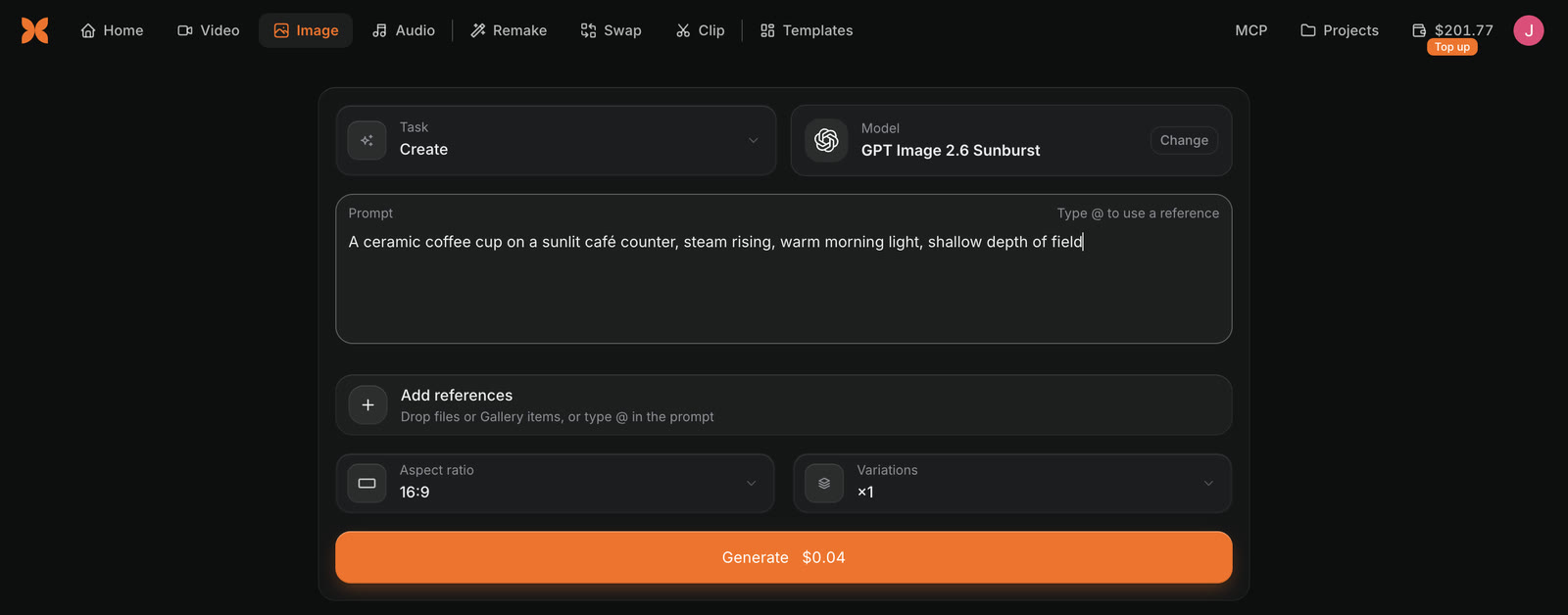
- Open the Image tab on the Craze home page, or click Make in a project and switch to Image.
- Leave Task on Create.
- Check the Model, or click Change to pick another.
- Describe the image in Prompt: the subject, the setting, the light and the style.
- Set the aspect ratio, resolution and number of variations.
- Click Generate. The button shows the price.
The image appears in the project's Gallery. You can also ask the Craze agent in the chat, for example "make a 9:16 poster of a cold brew can on a beach at sunset".
Which image models does Craze have?
Craze has many image models, and the model list in the Image tab shows the ones that can do the task you picked. Examples for creating images include Nano Banana Pro, GPT Image 2.6 Sunburst, Seedream 5 Pro, FLUX.2 Pro and Ideogram 4. Each model has its own look, settings and price.
See the Craze models page for every image model and its prices.
How do you use your own pictures in a Craze image?
To build a Craze image from your own pictures, such as a product, a logo or a character, add them as references.
- In the Craze Image tab, click Add references, or drop files or Gallery items onto it.
- In the prompt, type
@and choose the reference you mean, for example "put @product_shot on a marble counter". - Click Generate.
Craze picks the right way to run the model from what you attached, so the same Create task works with or without references. Below the references, Craze says how many pictures the chosen model takes.
How do you set the size and shape of a Craze image?
The Craze Image tab has three settings for the result:
- Aspect ratio, such as 16:9 for YouTube, 9:16 for Reels and TikTok, or 1:1 for a square post.
- Resolution, where the model offers more than one.
- Variations, from 1 to 4 images from one click of Generate.
The options depend on the model, so a choice can change when you change the model. The price on Generate updates with each setting.
How do you make another version of a Craze image?
To make another version of an image in Craze, open the project's Gallery and click Reuse on the image. Craze loads the same model, settings, prompt and references back into Make without generating anything. Change what you like, then click Generate.
Reuse also works on images the Craze agent made.
What can you do with a Craze image after it is made?
A Craze image in the Gallery has more tasks under "Make something from this" in its More menu:
| Next step in the Craze Gallery | What it does |
|---|---|
| Animate | Opens the Video tab with the image as the start frame |
| Edit | Opens the image Edit task with the image as a reference |
| Upscale | Makes the image larger and sharper |
| Remove background | Cuts the subject out of the image |
| Make it talk | Opens Talking photo with the image as the portrait |
| Drive with motion | Opens Motion transfer with the image as the character |
The same menu has Add to timeline, Add to chat and Use as reference, and each Gallery item can be downloaded or starred.