Craze
ModelsPricingMCPBlog

Search the docs

Find an article or a question in the Craze docs.

Get started

  • What is Craze?
  • Make your first video
  • A tour of the Craze app
  • Use Craze on your phone
  • Words to know

Work with the Craze agent

  • Describe your video to the Craze agent
  • Answer questions and approve the plan
  • Point at what to change with Tweak
  • Mention files, voices and projects
  • Choose the agent's tier: Efficient, Balanced or Power
  • What the Craze agent can do
  • Go back to an earlier version
  • Write a great brief

Create images, video and sound

  • Make media without the agent
  • Create an image
  • Create a video clip
  • Try a draft first
  • Edit, extend and upscale
  • Remove a background
  • Lip sync and talking photos
  • Motion transfer
  • Voiceovers and voices
  • Music and sound effects
  • Dub a video into another language

Start from a video

  • Start from a template
  • Remake a video
  • Swap people in a video

Edit on the timeline

  • Timeline basics
  • Sequences
  • Trim, split and change speed
  • Captions and transcripts
  • Transitions
  • Effects
  • Animations and keyframes
  • Text and fonts
  • Masks and cutouts
  • Audio
  • Keyboard shortcuts

Your media

  • Upload your files
  • Use the Gallery

Export and share

  • Export a video
  • Share a video with a link

Recipes

  • Make a product ad from product photos
  • Make a UGC-style creator video
  • Turn a talking-head recording into short clips
  • Make a music video cut to the beat

AI models

  • Which AI model should you use in Craze?

Plans and credits

  • Plans and credits

Use Craze from your agent

  • Connect your AI agent to Craze

Account and help

  • Your account and workspace
  • Fix a problem
Browse the docs

Get started

  • What is Craze?
  • Make your first video
  • A tour of the Craze app
  • Use Craze on your phone
  • Words to know

Work with the Craze agent

  • Describe your video to the Craze agent
  • Answer questions and approve the plan
  • Point at what to change with Tweak
  • Mention files, voices and projects
  • Choose the agent's tier: Efficient, Balanced or Power
  • What the Craze agent can do
  • Go back to an earlier version
  • Write a great brief

Create images, video and sound

  • Make media without the agent
  • Create an image
  • Create a video clip
  • Try a draft first
  • Edit, extend and upscale
  • Remove a background
  • Lip sync and talking photos
  • Motion transfer
  • Voiceovers and voices
  • Music and sound effects
  • Dub a video into another language

Start from a video

  • Start from a template
  • Remake a video
  • Swap people in a video

Edit on the timeline

  • Timeline basics
  • Sequences
  • Trim, split and change speed
  • Captions and transcripts
  • Transitions
  • Effects
  • Animations and keyframes
  • Text and fonts
  • Masks and cutouts
  • Audio
  • Keyboard shortcuts

Your media

  • Upload your files
  • Use the Gallery

Export and share

  • Export a video
  • Share a video with a link

Recipes

  • Make a product ad from product photos
  • Make a UGC-style creator video
  • Turn a talking-head recording into short clips
  • Make a music video cut to the beat

AI models

  • Which AI model should you use in Craze?

Plans and credits

  • Plans and credits

Use Craze from your agent

  • Connect your AI agent to Craze

Account and help

  • Your account and workspace
  • Fix a problem
Docs/Export and share

Share a video with a link

Craze can turn any MP4 export into a share link that anyone can open to watch and download the video, and you manage those links, and download past exports again, from the Exports card.

Last updated November 18, 2026

How do you create a share link for a Craze video?

Craze makes a share link when you export a video as an MP4.

  1. In the Craze editor, click Export at the right end of the player's header.
  2. Choose Video and keep the format on MP4 (H.264).
  3. Turn on Create share link. The dialog says "Anyone with the link can watch and download the exported video."
  4. Click Export MP4.

When the export finishes, Copy share link appears on the Craze Exports card. You can also add a link to an MP4 you already exported: find it on the Exports card and click Create share link. Share links are only for MP4 video exports, not WebM, audio or graphics.
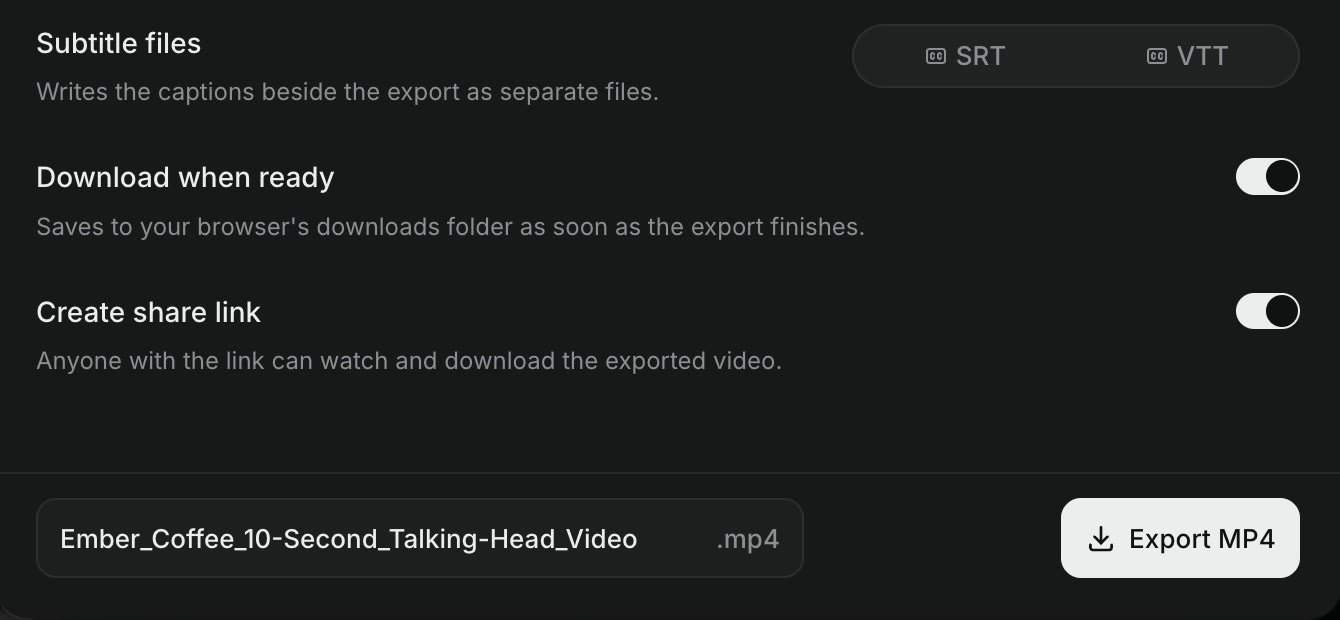
The bottom of the Craze export dialog with Subtitle files SRT and VTT, Download when ready on, Create share link on with the note Anyone with the link can watch and download the exported video, a file name and the Export MP4 button.
Create share link is switched on at the bottom of the Craze export dialog.

Where do you find your exports in Craze?

Every export of a Craze project is listed on the Exports card in the editor. While an export runs, the Export button shows its progress, and clicking it opens the Exports card. At any other time, click the arrow next to the Export button in the player's header and choose Export history. On a phone, tap Export and choose Export history.

The Exports card shows each export's progress while it renders, with Cancel to stop it, and its options once it finishes.

What can you do with a finished export in Craze?

A finished export on the Craze Exports card has these options:

  • Download saves the file to your computer again, as often as you like.
  • SRT and VTT download the subtitle files, when you chose them in the export dialog.
  • More (the three dots), Rename download… changes the name the file downloads with.
  • Copy share link copies the video's share link, or Create share link makes one if it has none (MP4 exports only).

How do you change or turn off a Craze share link?

A Craze share link works until you turn it off. On the Exports card, click the arrow next to Copy share link:

  • Rotate link replaces the link with a new one. The old link stops working, so only people you send the new link to can watch.
  • Revoke link turns the link off. Anyone who opens it sees "Video unavailable". Click Create share link on the same export to share it again with a new link.

A share link also stops working if the project it came from is deleted.

What do people see when they open a Craze share link?

A Craze share link opens a watch page in any browser, on a computer or a phone, with no Craze account needed. The page shows:

  • the video's title, which is the Craze project's title,
  • the display name of the person who exported it, and when,
  • the video, with play controls,
  • Copy link, to pass the link on,
  • Download, to save the video file.

People who aren't signed in also see Log in and Sign up at the top. If a link has been revoked or replaced, the page says "Video unavailable" instead of showing the video.

Who can watch

Anyone who has a Craze share link can watch and download the video. Send it only to people you want to see it, and use Rotate link or Revoke link if it reaches the wrong people.

Can you share a Craze project with someone instead of a video?

No. A Craze share link shares one finished video, not the project. People who open it can watch and download the video, but they can't see or edit the timeline, the files or the chat with the Craze agent.

Questions people ask

Yes. Anyone with a Craze share link can watch and download the exported video in their browser, without signing in.

Yes. On the Craze Exports card, open the menu next to Copy share link and choose Revoke link. The link stops working straight away.

Every export of a Craze project is on its Exports card. Open the menu next to the Export button in the editor and choose Export history to download any of them again.

PreviousExport a videoNextMake a product ad from product photos
Table of contents
  • How do you create a share link for a Craze video?
  • Where do you find your exports in Craze?
  • What can you do with a finished export in Craze?
  • How do you change or turn off a Craze share link?
  • What do people see when they open a Craze share link?
  • Can you share a Craze project with someone instead of a video?
  • Direct
  • Create
  • Edit
  • Models
  • Pricing
  • MCP
  • Contact us
  • Docs
  • Blogs
  • Changelog
  • Privacy
  • Terms
  • Instagram
  • YouTube
  • X
  • LinkedIn
  • English
  • 日本語
  • 한국어
  • Español
  • Deutsch
  • Français
  • Português
  • 简体中文

© 2026 Craze Technologies