Craze
ModelsPricingMCPBlog

Search the docs

Find an article or a question in the Craze docs.

Get started

  • What is Craze?
  • Make your first video
  • A tour of the Craze app
  • Use Craze on your phone
  • Words to know

Work with the Craze agent

  • Describe your video to the Craze agent
  • Answer questions and approve the plan
  • Point at what to change with Tweak
  • Mention files, voices and projects
  • Choose the agent's tier: Efficient, Balanced or Power
  • What the Craze agent can do
  • Go back to an earlier version
  • Write a great brief

Create images, video and sound

  • Make media without the agent
  • Create an image
  • Create a video clip
  • Try a draft first
  • Edit, extend and upscale
  • Remove a background
  • Lip sync and talking photos
  • Motion transfer
  • Voiceovers and voices
  • Music and sound effects
  • Dub a video into another language

Start from a video

  • Start from a template
  • Remake a video
  • Swap people in a video

Edit on the timeline

  • Timeline basics
  • Sequences
  • Trim, split and change speed
  • Captions and transcripts
  • Transitions
  • Effects
  • Animations and keyframes
  • Text and fonts
  • Masks and cutouts
  • Audio
  • Keyboard shortcuts

Your media

  • Upload your files
  • Use the Gallery

Export and share

  • Export a video
  • Share a video with a link

Recipes

  • Make a product ad from product photos
  • Make a UGC-style creator video
  • Turn a talking-head recording into short clips
  • Make a music video cut to the beat

AI models

  • Which AI model should you use in Craze?

Plans and credits

  • Plans and credits

Use Craze from your agent

  • Connect your AI agent to Craze

Account and help

  • Your account and workspace
  • Fix a problem
Browse the docs

Get started

  • What is Craze?
  • Make your first video
  • A tour of the Craze app
  • Use Craze on your phone
  • Words to know

Work with the Craze agent

  • Describe your video to the Craze agent
  • Answer questions and approve the plan
  • Point at what to change with Tweak
  • Mention files, voices and projects
  • Choose the agent's tier: Efficient, Balanced or Power
  • What the Craze agent can do
  • Go back to an earlier version
  • Write a great brief

Create images, video and sound

  • Make media without the agent
  • Create an image
  • Create a video clip
  • Try a draft first
  • Edit, extend and upscale
  • Remove a background
  • Lip sync and talking photos
  • Motion transfer
  • Voiceovers and voices
  • Music and sound effects
  • Dub a video into another language

Start from a video

  • Start from a template
  • Remake a video
  • Swap people in a video

Edit on the timeline

  • Timeline basics
  • Sequences
  • Trim, split and change speed
  • Captions and transcripts
  • Transitions
  • Effects
  • Animations and keyframes
  • Text and fonts
  • Masks and cutouts
  • Audio
  • Keyboard shortcuts

Your media

  • Upload your files
  • Use the Gallery

Export and share

  • Export a video
  • Share a video with a link

Recipes

  • Make a product ad from product photos
  • Make a UGC-style creator video
  • Turn a talking-head recording into short clips
  • Make a music video cut to the beat

AI models

  • Which AI model should you use in Craze?

Plans and credits

  • Plans and credits

Use Craze from your agent

  • Connect your AI agent to Craze

Account and help

  • Your account and workspace
  • Fix a problem
Docs/Start from a video

Start from a template

The Craze Templates page is a library of example videos you can search, filter by category, save and open with Remake or Swap to make your own version.

Last updated November 18, 2026

Where are templates in Craze?

Craze templates are on the Templates tab at the top of the Craze home page. Inside a project, you can also reach them with the Gallery, Editor and Templates toggle at the top of the project page. Each template is an example video that plays as you scroll, with its name shown when you hover over it.

What is a Craze template?

A Craze template is a finished example video that you can copy the style of. Each template has a name, a short description and tags that describe its look. You don't edit the template itself. Instead, you use it as the starting point for Remake, which copies its pacing and editing style with your own footage, or for Swap, which puts your own characters into it.

How do you find a template in Craze?

The Craze Templates page has a search box and category filters.

  1. Open the Templates tab on the Craze home page.
  2. Type in Search templates. Craze matches your words against each template's name, description and tags.
  3. Or click a category to narrow the list: All, Cinematic, Action, Products, Lifestyle or Creators.

Search and categories work together, so a search inside Products only lists product templates. If nothing matches, Craze shows "No templates found." Click Clear search or Browse templates to see the full list again.
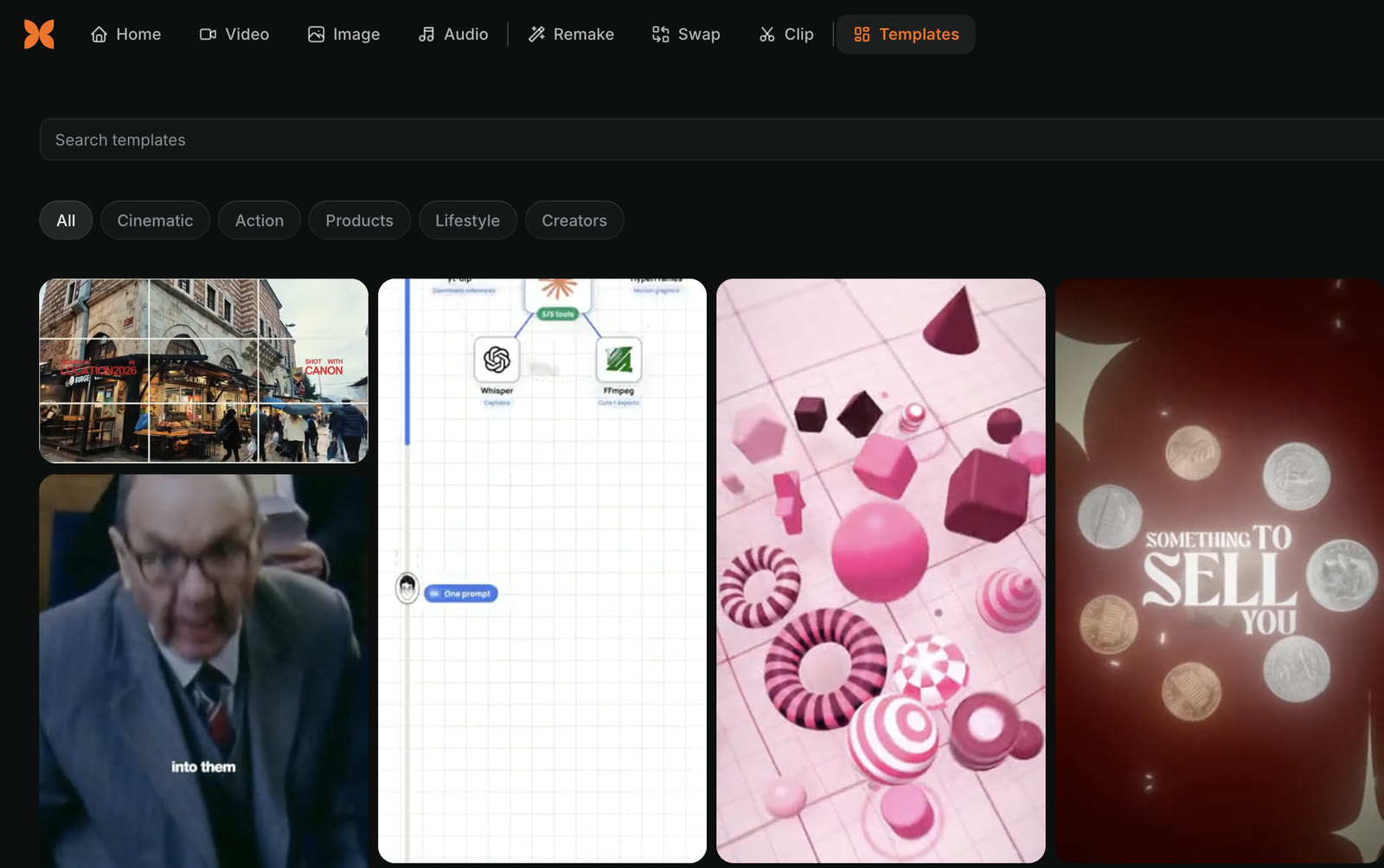
The Craze Templates tab with a Search templates box, a Saved button, filters All, Cinematic, Action, Products, Lifestyle and Creators, and a grid of template videos.
Search and category filters at the top of the Craze Templates tab.

How do you see the details of a Craze template?

Click any template on the Craze Templates page to open it. The template plays large, with its name, its description and its tags beside it. Along the bottom are three buttons: Remix, Copy link and Save template. On a phone, the buttons sit at the bottom of the screen and Back returns you to the list.

How do you use a template in Craze?

To make your own version of a Craze template:

  1. Open the template, or hover over it in the list.
  2. Click Remix.
  3. Choose how to use it:
    • Remake makes videos inspired by the original, with its pacing and editing style and your footage.
    • Swap swaps characters or objects into the original. Swap appears only on templates that support it.

Craze opens the Remake or Swap form with the template already filled in as the video to work from. Add your own footage or character photos, then start. The Craze Remake guide and the Craze Swap guide explain each form.

If you open a template from inside a project, the Remake or Swap form opens in that project's Make panel instead of on the home page.

How do you save a template in Craze?

To save a Craze template for later, open it and click Save template (the bookmark). Click it again to unsave it. To see only your saved templates, click Saved next to the search box on the Templates page.

Saved templates

Craze stores saved templates in the browser you saved them in. They don't follow you to another browser or device, and nobody else sees them. You need to be signed in to save a template.

How do you share a Craze template?

To share a Craze template, open it and click Copy link. Craze copies a link to that template and shows "Link copied". Anyone who opens the link sees the same template and can click Remix to start their own version.

Questions people ask

Yes. Craze has a Templates page of example videos in five categories: Cinematic, Action, Products, Lifestyle and Creators. Open any template and click Remix to make your own version with Remake or Swap.

No. Saved templates in Craze are stored in the browser you saved them in, so they do not appear on other devices or for other people.

Yes. Open the template in Craze and click Copy link. Anyone you send the link to opens the same template.

PreviousDub a video into another languageNextRemake a video
Table of contents
  • Where are templates in Craze?
  • What is a Craze template?
  • How do you find a template in Craze?
  • How do you see the details of a Craze template?
  • How do you use a template in Craze?
  • How do you save a template in Craze?
  • How do you share a Craze template?
  • Direct
  • Create
  • Edit
  • Models
  • Pricing
  • MCP
  • Contact us
  • Docs
  • Blogs
  • Changelog
  • Privacy
  • Terms
  • Instagram
  • YouTube
  • X
  • LinkedIn
  • English
  • 日本語
  • 한국어
  • Español
  • Deutsch
  • Français
  • Português
  • 简体中文

© 2026 Craze Technologies