Craze
ModelsPricingMCPBlog

Search the docs

Find an article or a question in the Craze docs.

Get started

  • What is Craze?
  • Make your first video
  • A tour of the Craze app
  • Use Craze on your phone
  • Words to know

Work with the Craze agent

  • Describe your video to the Craze agent
  • Answer questions and approve the plan
  • Point at what to change with Tweak
  • Mention files, voices and projects
  • Choose the agent's tier: Efficient, Balanced or Power
  • What the Craze agent can do
  • Go back to an earlier version
  • Write a great brief

Create images, video and sound

  • Make media without the agent
  • Create an image
  • Create a video clip
  • Try a draft first
  • Edit, extend and upscale
  • Remove a background
  • Lip sync and talking photos
  • Motion transfer
  • Voiceovers and voices
  • Music and sound effects
  • Dub a video into another language

Start from a video

  • Start from a template
  • Remake a video
  • Swap people in a video

Edit on the timeline

  • Timeline basics
  • Sequences
  • Trim, split and change speed
  • Captions and transcripts
  • Transitions
  • Effects
  • Animations and keyframes
  • Text and fonts
  • Masks and cutouts
  • Audio
  • Keyboard shortcuts

Your media

  • Upload your files
  • Use the Gallery

Export and share

  • Export a video
  • Share a video with a link

Recipes

  • Make a product ad from product photos
  • Make a UGC-style creator video
  • Turn a talking-head recording into short clips
  • Make a music video cut to the beat

AI models

  • Which AI model should you use in Craze?

Plans and credits

  • Plans and credits

Use Craze from your agent

  • Connect your AI agent to Craze

Account and help

  • Your account and workspace
  • Fix a problem
Browse the docs

Get started

  • What is Craze?
  • Make your first video
  • A tour of the Craze app
  • Use Craze on your phone
  • Words to know

Work with the Craze agent

  • Describe your video to the Craze agent
  • Answer questions and approve the plan
  • Point at what to change with Tweak
  • Mention files, voices and projects
  • Choose the agent's tier: Efficient, Balanced or Power
  • What the Craze agent can do
  • Go back to an earlier version
  • Write a great brief

Create images, video and sound

  • Make media without the agent
  • Create an image
  • Create a video clip
  • Try a draft first
  • Edit, extend and upscale
  • Remove a background
  • Lip sync and talking photos
  • Motion transfer
  • Voiceovers and voices
  • Music and sound effects
  • Dub a video into another language

Start from a video

  • Start from a template
  • Remake a video
  • Swap people in a video

Edit on the timeline

  • Timeline basics
  • Sequences
  • Trim, split and change speed
  • Captions and transcripts
  • Transitions
  • Effects
  • Animations and keyframes
  • Text and fonts
  • Masks and cutouts
  • Audio
  • Keyboard shortcuts

Your media

  • Upload your files
  • Use the Gallery

Export and share

  • Export a video
  • Share a video with a link

Recipes

  • Make a product ad from product photos
  • Make a UGC-style creator video
  • Turn a talking-head recording into short clips
  • Make a music video cut to the beat

AI models

  • Which AI model should you use in Craze?

Plans and credits

  • Plans and credits

Use Craze from your agent

  • Connect your AI agent to Craze

Account and help

  • Your account and workspace
  • Fix a problem
Docs/Create images, video and sound

Remove a background

Craze removes backgrounds three ways: the Remove background task cuts the subject out of an image, Chroma key removes a green or blue screen from a video, and an Object mask cuts a person or object out of any clip and follows them as they move.

Last updated November 18, 2026

How do you remove the background from an image in Craze?

The Remove background task in Craze cuts the subject out of a picture.

  1. Open the Image tab on the Craze home page, or click Make in a project and switch to Image.
  2. Set Task to Remove background.
  3. Add the Image.
  4. Click Generate. The button shows the price.

The cut-out appears in the project's Gallery. In a project, Remove background in the More menu of an image in the Gallery opens this task with the image already added. Craze removes image backgrounds with models such as BiRefNet and Bria RMBG 2.0; see the Craze models page for prices.
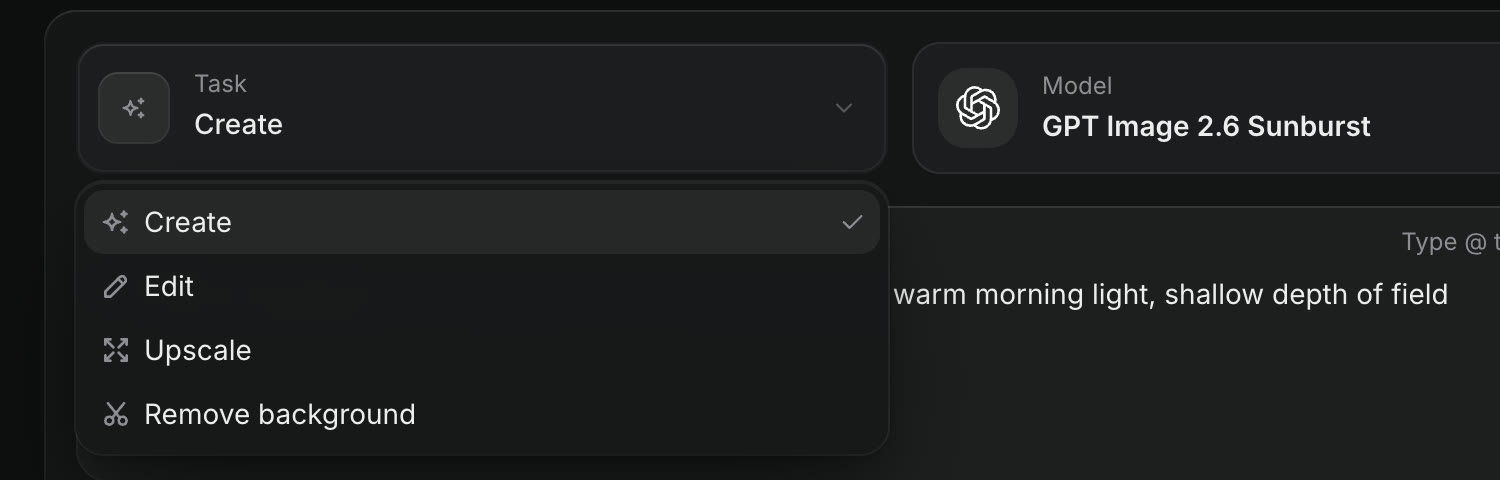
The Task menu in the Craze Image tab, open, listing Create, Edit, Upscale and Remove background.
Remove background is one of the tasks in the Craze Image tab.

How do you remove a green screen in Craze?

Craze removes green and blue screens from video with the Chroma key effect in the editor.

  1. In the Craze editor, open Library in the media panel.
  2. Open Effects, then Keying.
  3. Apply Chroma key to your clip.

Craze picks the screen colour for you. To fine-tune the key, select the clip and adjust Chroma key in Properties; its colour can be sampled straight from the preview.

How do you cut a person or object out of a video in Craze?

An Object mask in Craze cuts a person or object out of any clip, with no green screen needed.

  1. Select the clip on the Craze timeline and open Properties in the media panel.
  2. Click Add mask and choose Object mask.
  3. Click the subject in the preview. Option-click (Alt-click on Windows) removes parts you don't want, and dragging draws a box around the subject.
  4. Press Track. Craze follows the subject through the clip and shows its progress.

An Object mask takes up to 20 clicks. Clear the selection to start again.

What can you do with a cut-out subject in Craze?

Once a Craze clip has its background removed, anything on a lower track of the timeline shows through behind the subject. That lets you:

  • Put a new background, picture or video behind a presenter.
  • Place text behind a person, so the title sits between them and the scene.
  • Combine a product cut-out from an image with generated footage.

Picture tracks higher on the Craze timeline cover lower ones, so put the cut-out clip on the track above whatever should appear behind it. See timeline basics.

Can the Craze agent remove a background for you?

Yes. The Craze agent can remove a green screen or cut a subject out for you. Ask it in the chat, for example "Remove the green screen from this clip" or "put the logo behind the presenter". Select the clip first and add it as a tweak so the Craze agent knows exactly which clip you mean.

Questions people ask

Yes. Choose Remove background in the Craze Image tab, add the image and click Generate, or choose Remove background from the image's menu in the Gallery. Craze uses models such as BiRefNet and Bria RMBG 2.0.

Yes. Craze removes green and blue screen backgrounds from video with its Chroma key effect, in Library, then Effects, then Keying in the editor.

Yes. In the Craze editor, add an Object mask to the clip, click the person or object and press Track. Craze follows the subject as it moves.

Yes. Ask the Craze agent in the chat, for example "Remove the green screen from this clip" or "cut the presenter out of this shot".

PreviousEdit, extend and upscaleNextLip sync and talking photos
Table of contents
  • How do you remove the background from an image in Craze?
  • How do you remove a green screen in Craze?
  • How do you cut a person or object out of a video in Craze?
  • What can you do with a cut-out subject in Craze?
  • Can the Craze agent remove a background for you?
  • Direct
  • Create
  • Edit
  • Models
  • Pricing
  • MCP
  • Contact us
  • Docs
  • Blogs
  • Changelog
  • Privacy
  • Terms
  • Instagram
  • YouTube
  • X
  • LinkedIn
  • English
  • 日本語
  • 한국어
  • Español
  • Deutsch
  • Français
  • Português
  • 简体中文

© 2026 Craze Technologies