Craze
ModelsPricingMCPBlog

Search the docs

Find an article or a question in the Craze docs.

Get started

  • What is Craze?
  • Make your first video
  • A tour of the Craze app
  • Use Craze on your phone
  • Words to know

Work with the Craze agent

  • Describe your video to the Craze agent
  • Answer questions and approve the plan
  • Point at what to change with Tweak
  • Mention files, voices and projects
  • Choose the agent's tier: Efficient, Balanced or Power
  • What the Craze agent can do
  • Go back to an earlier version
  • Write a great brief

Create images, video and sound

  • Make media without the agent
  • Create an image
  • Create a video clip
  • Try a draft first
  • Edit, extend and upscale
  • Remove a background
  • Lip sync and talking photos
  • Motion transfer
  • Voiceovers and voices
  • Music and sound effects
  • Dub a video into another language

Start from a video

  • Start from a template
  • Remake a video
  • Swap people in a video

Edit on the timeline

  • Timeline basics
  • Sequences
  • Trim, split and change speed
  • Captions and transcripts
  • Transitions
  • Effects
  • Animations and keyframes
  • Text and fonts
  • Masks and cutouts
  • Audio
  • Keyboard shortcuts

Your media

  • Upload your files
  • Use the Gallery

Export and share

  • Export a video
  • Share a video with a link

Recipes

  • Make a product ad from product photos
  • Make a UGC-style creator video
  • Turn a talking-head recording into short clips
  • Make a music video cut to the beat

AI models

  • Which AI model should you use in Craze?

Plans and credits

  • Plans and credits

Use Craze from your agent

  • Connect your AI agent to Craze

Account and help

  • Your account and workspace
  • Fix a problem
Browse the docs

Get started

  • What is Craze?
  • Make your first video
  • A tour of the Craze app
  • Use Craze on your phone
  • Words to know

Work with the Craze agent

  • Describe your video to the Craze agent
  • Answer questions and approve the plan
  • Point at what to change with Tweak
  • Mention files, voices and projects
  • Choose the agent's tier: Efficient, Balanced or Power
  • What the Craze agent can do
  • Go back to an earlier version
  • Write a great brief

Create images, video and sound

  • Make media without the agent
  • Create an image
  • Create a video clip
  • Try a draft first
  • Edit, extend and upscale
  • Remove a background
  • Lip sync and talking photos
  • Motion transfer
  • Voiceovers and voices
  • Music and sound effects
  • Dub a video into another language

Start from a video

  • Start from a template
  • Remake a video
  • Swap people in a video

Edit on the timeline

  • Timeline basics
  • Sequences
  • Trim, split and change speed
  • Captions and transcripts
  • Transitions
  • Effects
  • Animations and keyframes
  • Text and fonts
  • Masks and cutouts
  • Audio
  • Keyboard shortcuts

Your media

  • Upload your files
  • Use the Gallery

Export and share

  • Export a video
  • Share a video with a link

Recipes

  • Make a product ad from product photos
  • Make a UGC-style creator video
  • Turn a talking-head recording into short clips
  • Make a music video cut to the beat

AI models

  • Which AI model should you use in Craze?

Plans and credits

  • Plans and credits

Use Craze from your agent

  • Connect your AI agent to Craze

Account and help

  • Your account and workspace
  • Fix a problem
Docs/Get started

A tour of the Craze app

The Craze app has a home page where you start videos and find projects, a project page with the Craze agent chat, the Editor and the Gallery, and an account menu for usage, billing, language and support.

Last updated November 18, 2026

What is on the Craze home page?

The Craze home page is where you start a new video, make a single clip or find an old project. Across the top are the tabs Home, Video, Image, Audio, Remake, Swap, Templates, MCP and Projects, with your credit balance, a Top up button and your avatar at the top right.

On the Home tab you'll find:

  • The chat box. It says "Tell Craze what you want to make". Type a brief, attach files with Attach a file, or press Lucky for a sample idea, then send it to start a project with the Craze agent. The chat box also has the model tier menu (Efficient, Balanced or Power) and voice input.
  • Projects. Your three most recent Craze projects sit under the chat box, with See all to open the full list.
  • Remake and Swap. Two cards: Try Remake recreates a video's pacing and style with your own footage, and Try Swap replaces the characters in a video with your photos.
  • Featured models. A row of AI models for video, images and voice, with See all models to open the full Craze models list.
  • Templates. Example videos you can start from, with All templates to see every one.

What do the Video, Image and Audio tabs in Craze do?

The Video, Image and Audio tabs at the top of the Craze home page make one clip without the Craze agent. You pick a task, an AI model and settings such as aspect ratio, resolution and duration, and the Generate button shows the price before anything runs. Use these tabs when you know exactly what you want, such as one product shot or one voice line. The full list of models and their prices is on the Craze models page.

What is on a Craze project page?

A Craze project page has a top bar, the Craze agent on the left and your video on the right.

  • The top bar. The project title on the left is a menu with Back to Home, Back to Projects, New project, Rename project and Archive project. In the middle, the Gallery, Editor and Templates toggle switches the main area. On the right are your credit balance and the account menu.
  • The Agent panel. The chat with the Craze agent fills the left side, with the chat box "Ask Craze anything" at the bottom. The chat box has Attach a file, Tweak, the model tier menu, voice input and Send, which becomes Stop while the Craze agent works.
  • Make. The Make button in the header of the Agent panel swaps the chat for a form that generates media directly, like the Video, Image and Audio tabs on Home. Press ⌘. (Ctrl+. on Windows) to switch between Agent and Make.

What is in the Craze Editor?

The Craze Editor is where you watch, edit and export the video, and it opens when the Gallery, Editor and Templates toggle at the top of a project is set to Editor. It has three parts:

  • The media panel at the top left, with the tabs Assets, Captions, Transcripts, Library and Properties. Assets lists every file in the project, Library holds transitions, effects, animations and sounds, and Properties shows the settings of whatever is selected.
  • The player at the top right, with play and pause (Space), Loop playback, fullscreen, Pop out preview and the Export button at the right end of its header.
  • The timeline along the bottom, with the sequence tabs, the Edit and Animate toggle, undo and redo, and More, which holds History and checkpoints and Keyboard shortcuts.

The Craze timeline basics guide covers the timeline in detail.
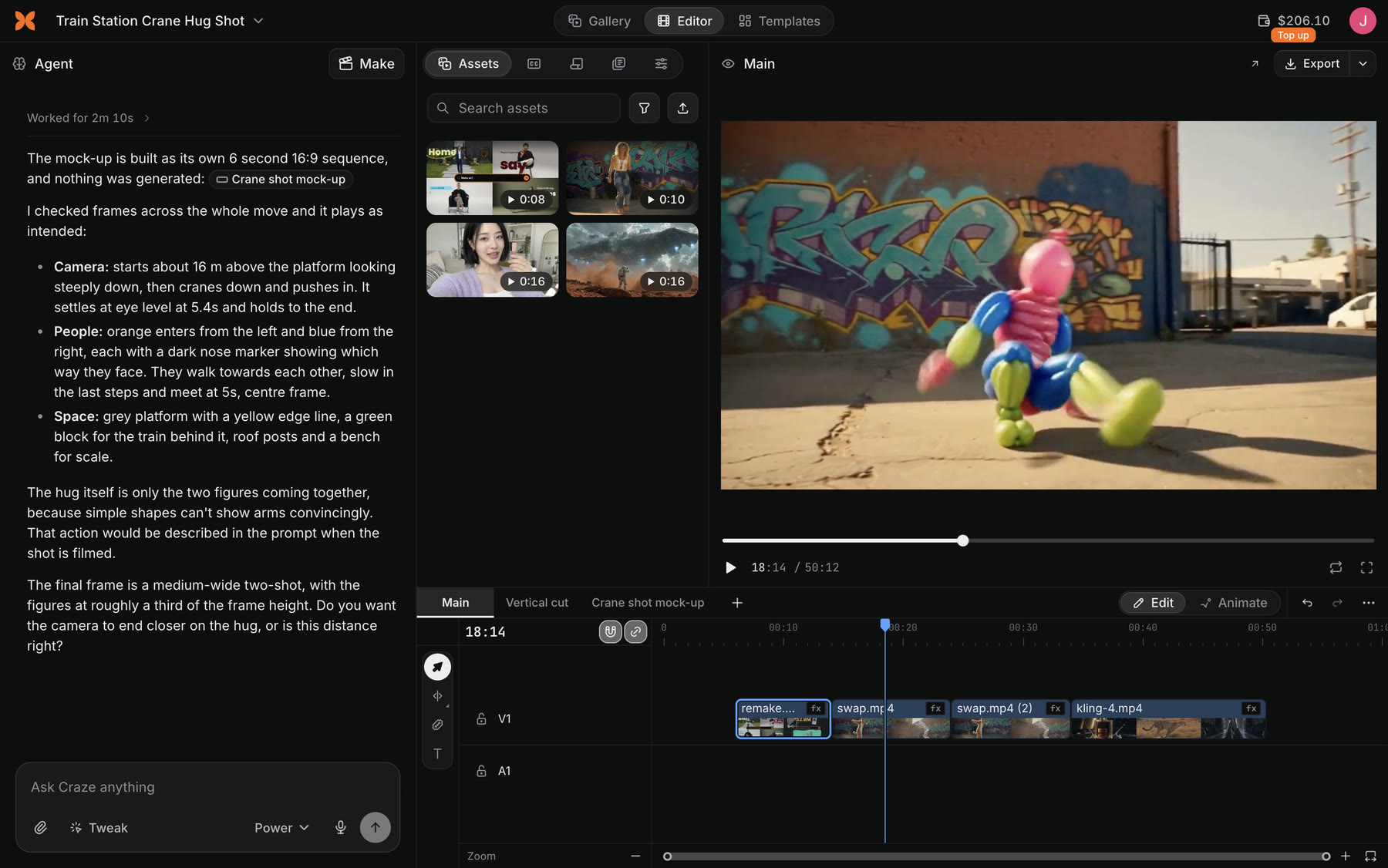
A Craze project in the Editor: the Craze agent chat on the left, the Assets panel and the player in the middle and right, and the timeline with video clips along the bottom.
A Craze project in the Editor, with the Agent panel on the left.

What is the Craze Gallery?

The Craze Gallery is a grid of every image, video and audio file in a project, from you and from the Craze agent. Switch the Gallery, Editor and Templates toggle at the top of the project page to Gallery to see it. You can filter and sort the grid, Star the files you want to keep handy, and hover a file for actions such as Download, Use as reference, Reuse, Add to chat and Add to timeline. The Gallery has no timeline and no Export button; switch back to Editor to watch or export your video.

What is in the Craze account menu?

The Craze account menu opens from your avatar at the top right of every page. It has:

Menu itemWhat it does in Craze
UsageShows your credit balance and usage, with Top up and Auto-reload
BillingOpens your plan and billing, where you can upgrade or manage it
SupportOpens a chat with the Craze support team
Use Craze via MCPOpens the Craze MCP page in a new tab, to connect your own AI agent
Manage preferencesOpens your privacy preferences, where they apply
LanguageSwitches the Craze app between English, Japanese, Korean and Spanish
Sign outSigns you out of Craze

Your credit balance in the top bar also opens Usage.

How do you move around between Craze projects?

You move between Craze projects with the project title menu on a project page, or from the Projects tab on the Craze home page.

  1. Click the project title at the top left of the project page.
  2. Choose Back to Projects to see your project list, or New project to start a fresh one.
  3. On the Projects tab, type in Search projects to find a project by name, or switch to Archived to see projects you archived.
  4. Use the menu on a project to Rename, Archive, Restore or Delete it.
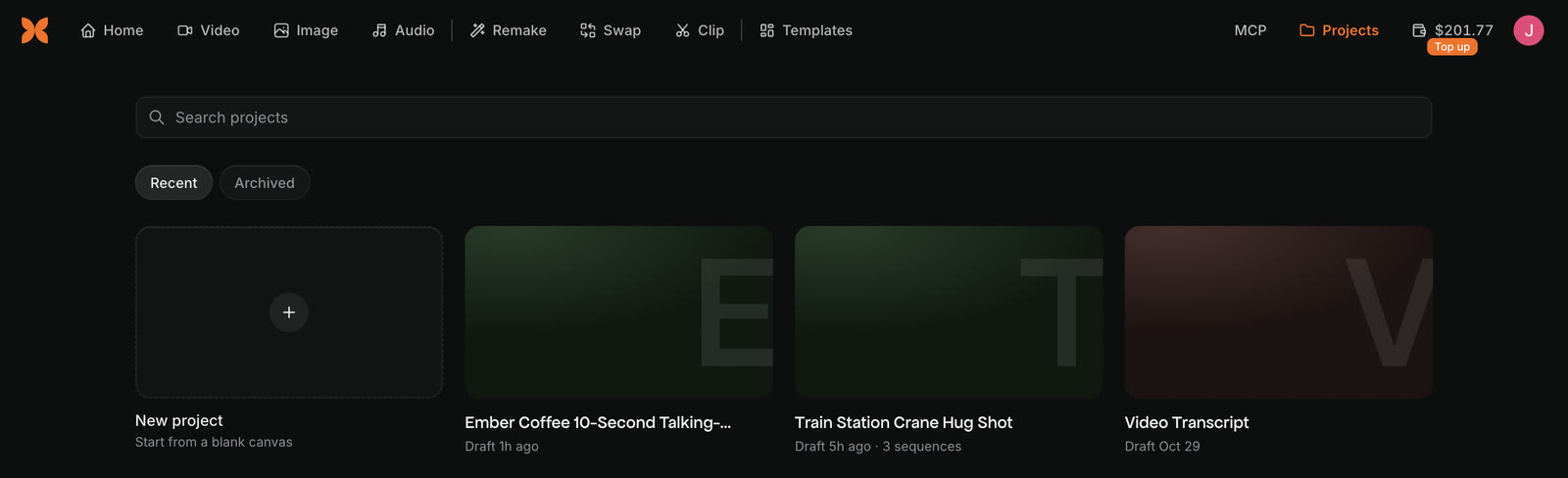
The Craze Projects tab with a Search projects box, Recent and Archived, a New project card that reads Start from a blank canvas, and project cards.
The Craze Projects tab, with search and the Archived view at the top.

Deleting a Craze project removes it and its files for good; archive it instead if you might want it back.

Questions people ask

Your Craze projects are on the Projects tab at the top of the Craze home page, where you can search them and switch between Recent and Archived. Your three latest projects also show under the chat box on Home.

Use the Gallery, Editor and Templates toggle in the middle of the top bar on any Craze project page. The Editor shows the player and timeline; the Gallery shows every image, video and audio file in the project.

Open the account menu from your avatar at the top right of Craze, choose Language, and pick English, Japanese, Korean or Spanish. Craze reloads the page in that language.

PreviousMake your first videoNextUse Craze on your phone
Table of contents
  • What is on the Craze home page?
  • What do the Video, Image and Audio tabs in Craze do?
  • What is on a Craze project page?
  • What is in the Craze Editor?
  • What is the Craze Gallery?
  • What is in the Craze account menu?
  • How do you move around between Craze projects?
  • Direct
  • Create
  • Edit
  • Models
  • Pricing
  • MCP
  • Contact us
  • Docs
  • Blogs
  • Changelog
  • Privacy
  • Terms
  • Instagram
  • YouTube
  • X
  • LinkedIn
  • English
  • 日本語
  • 한국어
  • Español
  • Deutsch
  • Français
  • Português
  • 简体中文

© 2026 Craze Technologies