
How do you start a video in Craze?
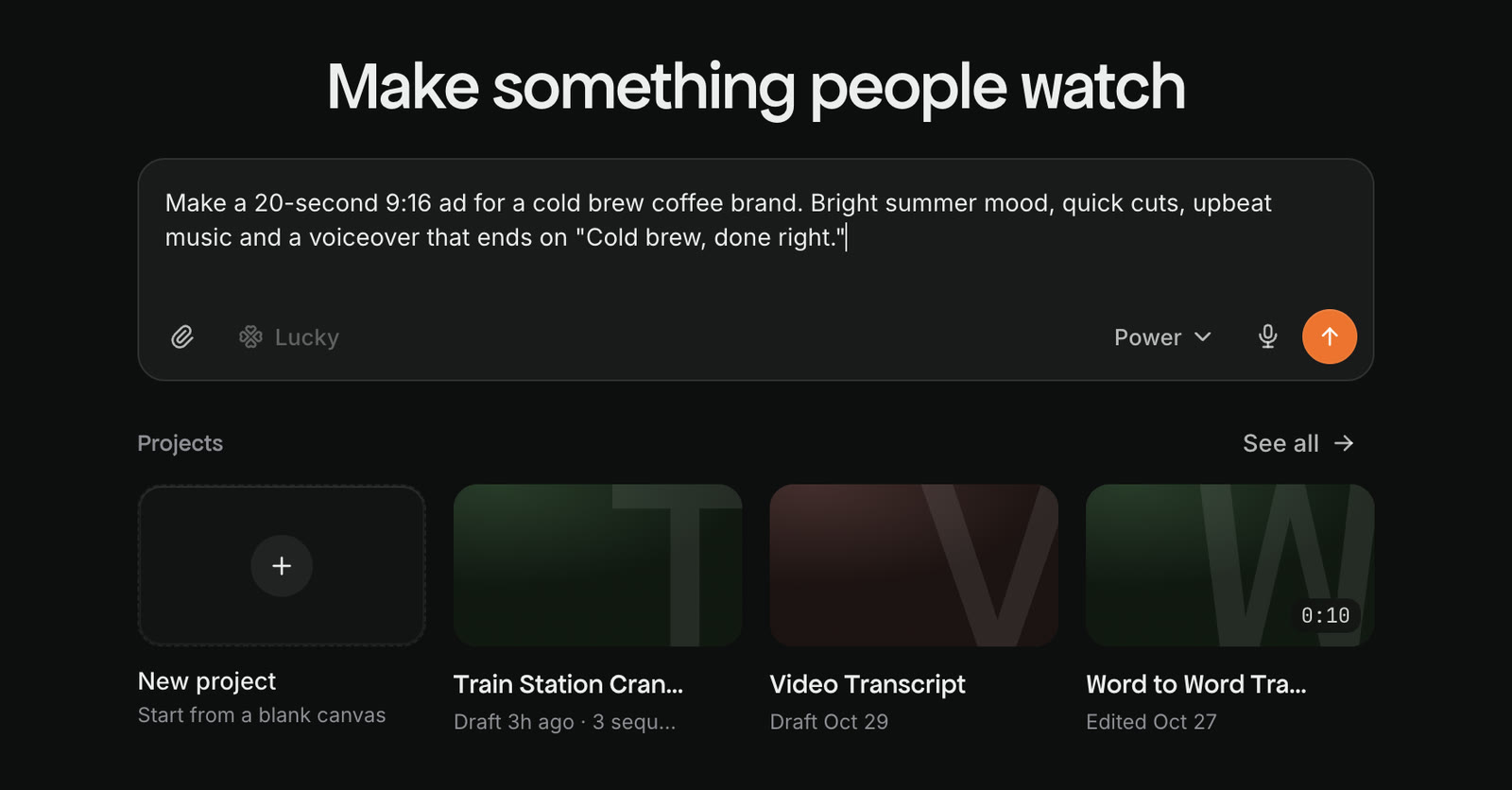
You start a video in Craze from the chat box on the home page.
- Sign in at craze.ai. Craze opens on Home.
- Click the chat box that says "Tell Craze what you want to make".
- Describe the video you want. Drag in any photos, videos or audio you want the Craze agent to use.
- Send the message. Craze creates a new project and the Craze agent starts working on it.
What should you tell the Craze agent?
The Craze agent makes better videos when your first message covers:
- What it is: an ad, a social clip, an explainer, a music video.
- Who it is for and where it will be posted: for example, a 9:16 video for Instagram Reels.
- How long it should be: for example, 20 seconds.
- How it should look and sound: a mood, a style, a reference, or "match my brand".
- What to use: your product photos, your footage, a logo, a voiceover script.
You don't need all of these. If something is missing, the Craze agent asks.
What happens after you send your first message?
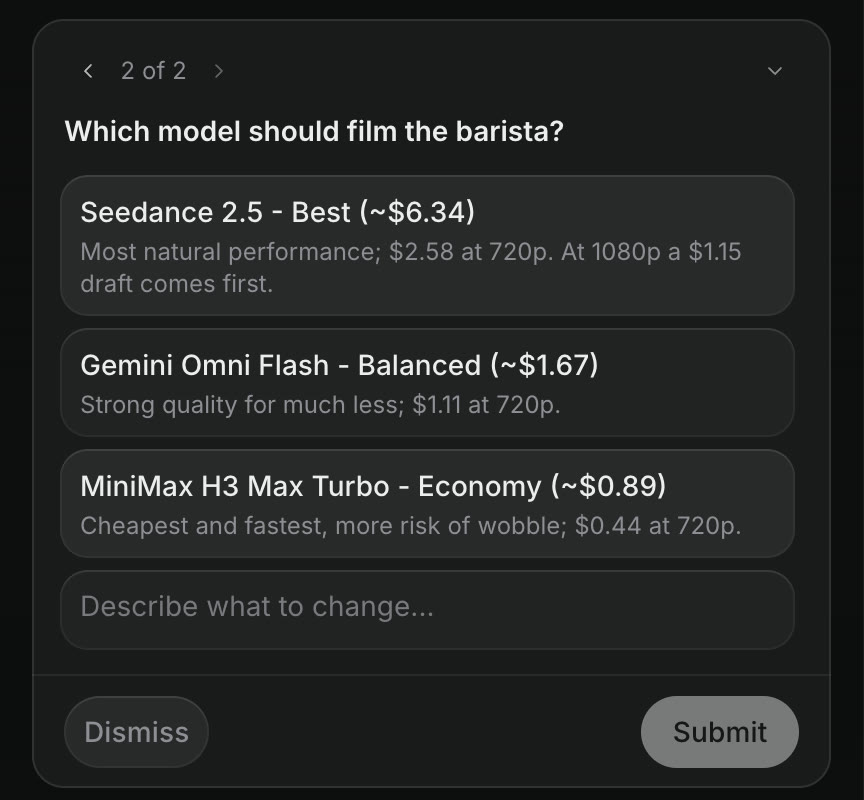
After your first message, the Craze agent may ask you a few questions about the video. They appear in a card above the Craze chat box, one at a time ("1 of 2"). Pick an answer, or type your own in "Describe what to change...", then click Continue for the next question and Submit on the last one. Dismiss closes the questions without answering them.
One of the questions is often which AI model should make the video, with the price of each choice next to it. Your answer is the go-ahead: the Craze agent starts generating with the model and price you picked.
The Craze agent then shows you a plan before it spends credits on generating:
- For a short video, the plan is a shot list in the chat: each shot, how long it is, what happens in it, and which AI model will make it, with the price.
- For a longer video, the plan is a page. A plan card appears in the chat, titled with the plan's name or "Your plan is ready", and View plan opens it.
How do you approve the plan or change it?
If the Craze agent asked you to choose a model and price, your answer already approves the plan. Otherwise, to approve a Craze plan, reply in the chat and tell the Craze agent to go ahead. To change the plan, reply with what you want different, such as "make the second shot longer" or "use a warmer colour palette". Changing the plan now is cheap: the Craze agent's own running credits are small, and the cost of generating starts only when the Craze agent starts generating.
Which agent model should you choose?
The Craze agent runs on one of three tiers, which you pick from the model menu in the Craze chat box:
| Tier | Best for | Plans |
|---|---|---|
| Efficient | Quick jobs that are light on credits | Every plan, including Free |
| Balanced | Most videos | Paid plans |
| Power | The most demanding videos | Paid plans |
The tier only changes how the Craze agent thinks and plans. The AI models that generate your video, images and audio are the same on every tier.
How do you watch your video?
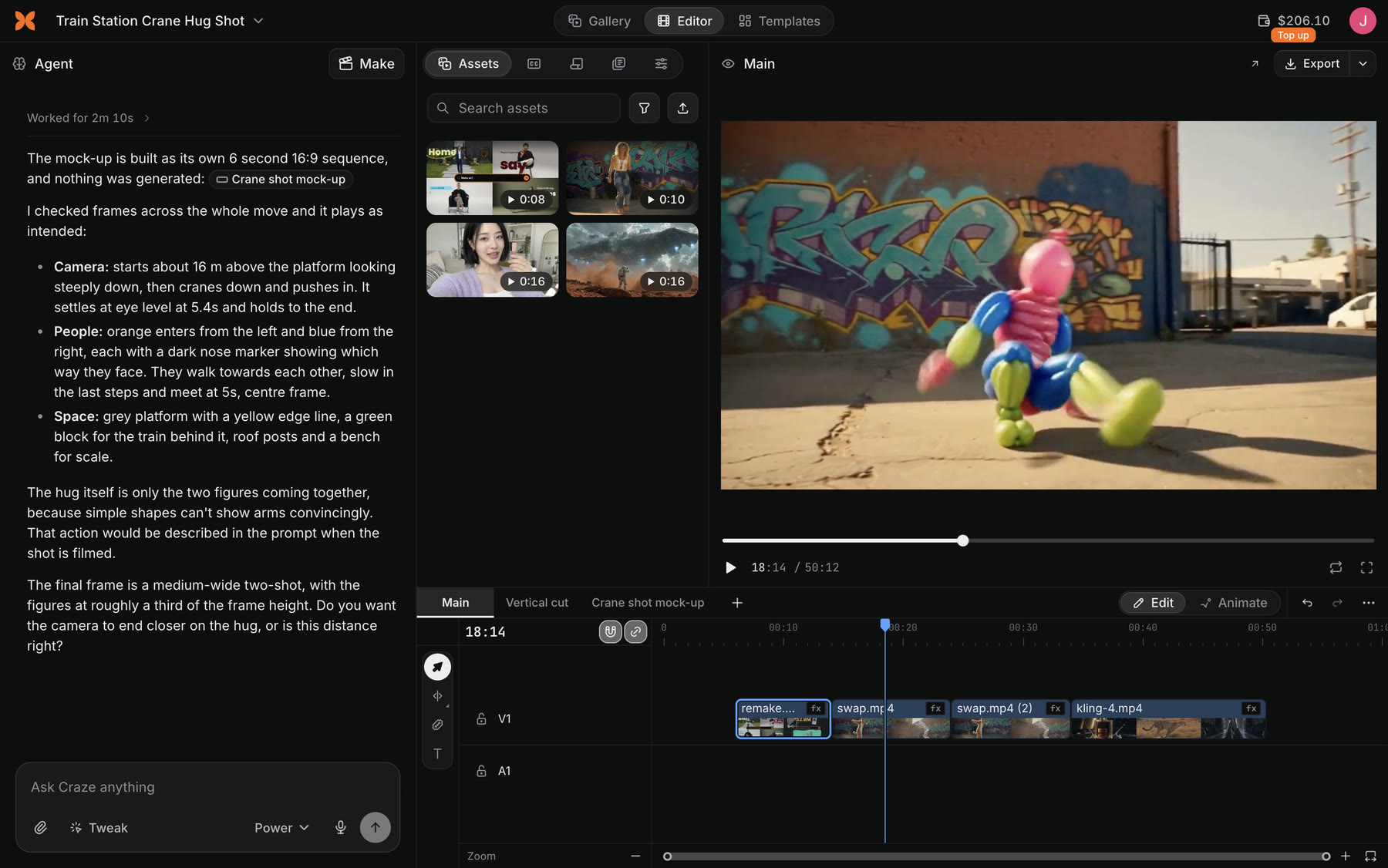
Your Craze video plays in the Editor.
- Make sure the Gallery, Editor and Templates toggle at the top of the project page is set to Editor.
- Press Play in the player at the top right, or press
Space. - Click Pop out preview in the player's header to watch it in its own window, or use the fullscreen button.
The player plays the whole sequence, picture and sound, exactly as it will export.
How do you change something in your video?
You can change a Craze video in two ways:
- Ask the Craze agent. Type what you want in the chat, for example "swap the music for something calmer" or "cut the last two seconds".
- Point at it. Select a clip on the timeline, an object in the preview or a file in Assets, add a comment, and Craze sends it to the agent as a tweak, so the agent knows exactly what you mean.
You can also edit the timeline by hand. Your edits and the Craze agent's edits are on the same timeline.
How do you download your finished video?
You download a Craze video with the Export button.
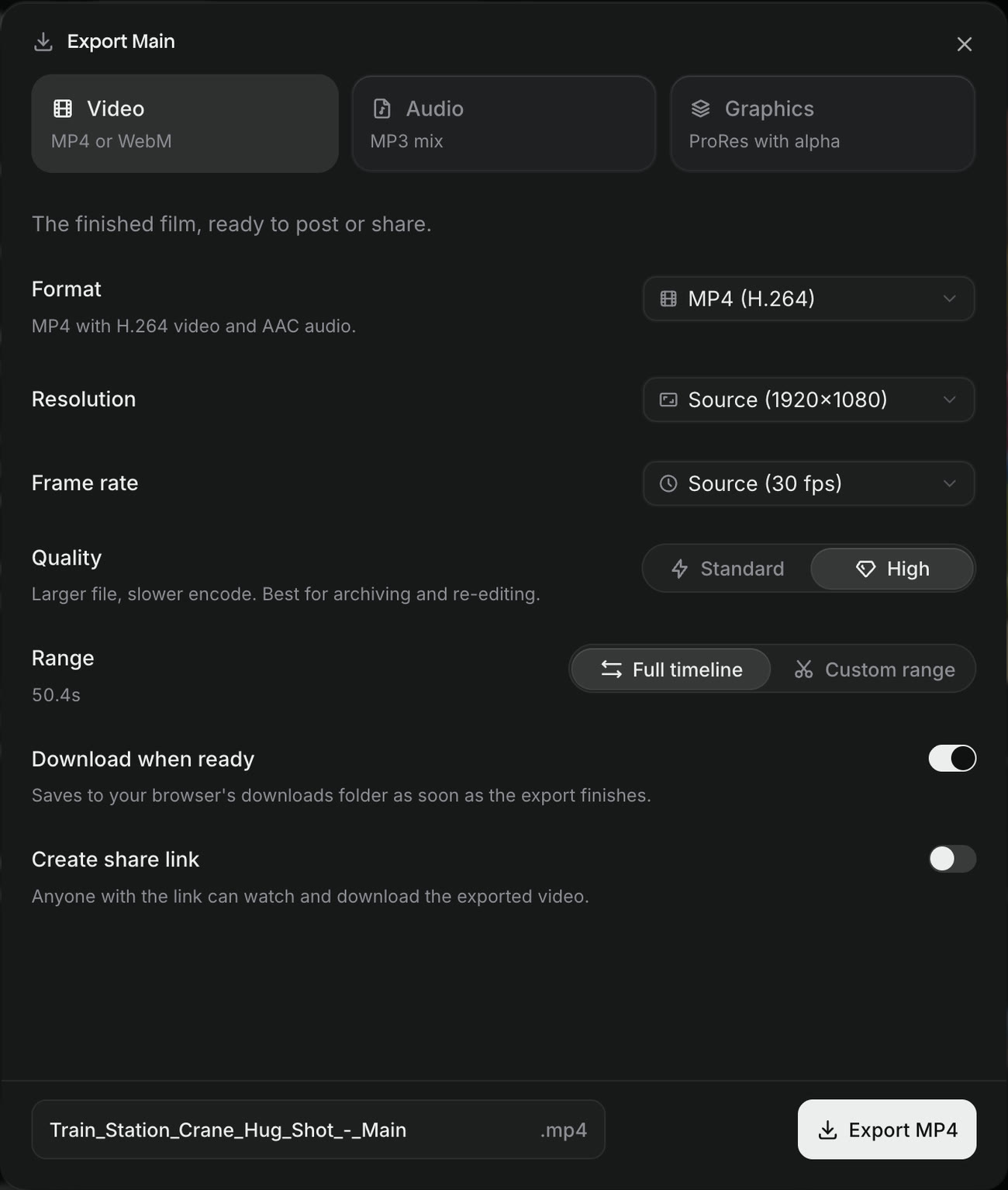
- In the Editor, click Export at the right end of the player's header.
- Choose Video, then set the format (MP4 or WebM), resolution, frame rate and quality.
- Leave Download when ready on, and turn on Create share link if you want a link to send.
- Click Export MP4. Craze renders the video and downloads it to your computer.
Finished exports also appear on the Exports card, where you can download them again or create a share link.