Craze
ModelsPricingMCPBlog

Search the docs

Find an article or a question in the Craze docs.

Get started

  • What is Craze?
  • Make your first video
  • A tour of the Craze app
  • Use Craze on your phone
  • Words to know

Work with the Craze agent

  • Describe your video to the Craze agent
  • Answer questions and approve the plan
  • Point at what to change with Tweak
  • Mention files, voices and projects
  • Choose the agent's tier: Efficient, Balanced or Power
  • What the Craze agent can do
  • Go back to an earlier version
  • Write a great brief

Create images, video and sound

  • Make media without the agent
  • Create an image
  • Create a video clip
  • Try a draft first
  • Edit, extend and upscale
  • Remove a background
  • Lip sync and talking photos
  • Motion transfer
  • Voiceovers and voices
  • Music and sound effects
  • Dub a video into another language

Start from a video

  • Start from a template
  • Remake a video
  • Swap people in a video

Edit on the timeline

  • Timeline basics
  • Sequences
  • Trim, split and change speed
  • Captions and transcripts
  • Transitions
  • Effects
  • Animations and keyframes
  • Text and fonts
  • Masks and cutouts
  • Audio
  • Keyboard shortcuts

Your media

  • Upload your files
  • Use the Gallery

Export and share

  • Export a video
  • Share a video with a link

Recipes

  • Make a product ad from product photos
  • Make a UGC-style creator video
  • Turn a talking-head recording into short clips
  • Make a music video cut to the beat

AI models

  • Which AI model should you use in Craze?

Plans and credits

  • Plans and credits

Use Craze from your agent

  • Connect your AI agent to Craze

Account and help

  • Your account and workspace
  • Fix a problem
Browse the docs

Get started

  • What is Craze?
  • Make your first video
  • A tour of the Craze app
  • Use Craze on your phone
  • Words to know

Work with the Craze agent

  • Describe your video to the Craze agent
  • Answer questions and approve the plan
  • Point at what to change with Tweak
  • Mention files, voices and projects
  • Choose the agent's tier: Efficient, Balanced or Power
  • What the Craze agent can do
  • Go back to an earlier version
  • Write a great brief

Create images, video and sound

  • Make media without the agent
  • Create an image
  • Create a video clip
  • Try a draft first
  • Edit, extend and upscale
  • Remove a background
  • Lip sync and talking photos
  • Motion transfer
  • Voiceovers and voices
  • Music and sound effects
  • Dub a video into another language

Start from a video

  • Start from a template
  • Remake a video
  • Swap people in a video

Edit on the timeline

  • Timeline basics
  • Sequences
  • Trim, split and change speed
  • Captions and transcripts
  • Transitions
  • Effects
  • Animations and keyframes
  • Text and fonts
  • Masks and cutouts
  • Audio
  • Keyboard shortcuts

Your media

  • Upload your files
  • Use the Gallery

Export and share

  • Export a video
  • Share a video with a link

Recipes

  • Make a product ad from product photos
  • Make a UGC-style creator video
  • Turn a talking-head recording into short clips
  • Make a music video cut to the beat

AI models

  • Which AI model should you use in Craze?

Plans and credits

  • Plans and credits

Use Craze from your agent

  • Connect your AI agent to Craze

Account and help

  • Your account and workspace
  • Fix a problem
Docs/Create images, video and sound

Lip sync and talking photos

Craze makes people speak your audio two ways: Lip sync re-times the mouth in an existing video to new speech, and Talking photo turns a single portrait and a speech clip into a talking video.

Last updated November 18, 2026

What is the difference between lip sync and a talking photo in Craze?

Craze has two tasks for making someone speak, both in the Video tab:

  • Lip sync starts from a video of a person and changes their mouth to match new speech. Use it to fix dialogue, swap a line or match a dub.
  • Talking photo starts from a single picture of a person and turns it into a video of them saying the speech. Use it for presenters, avatars and characters.

Both need a speech clip. If you don't have one, make it first with the Voice task in the Craze Audio tab; see voiceovers.
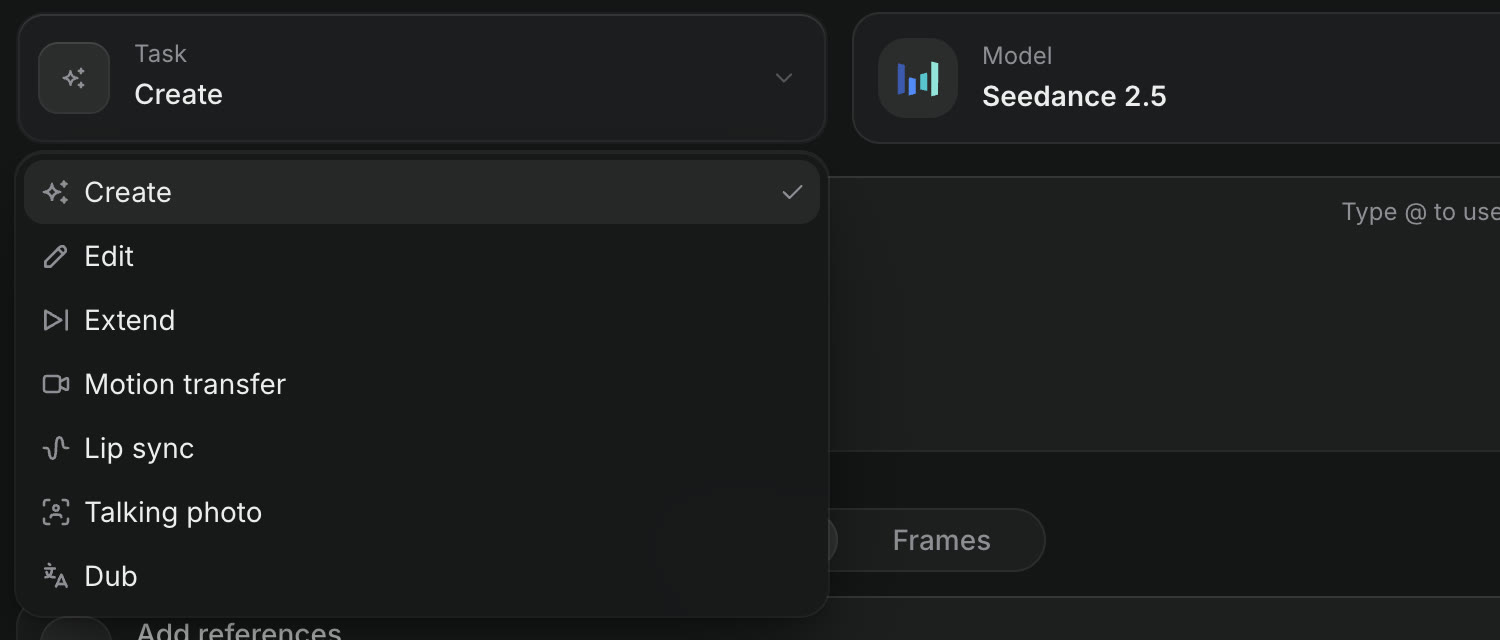
The Task menu in the Craze Video tab, open, listing Create, Edit, Extend, Motion transfer, Lip sync, Talking photo and Dub.
Lip sync and Talking photo are both tasks in the Craze Video tab.

How do you lip sync a video in Craze?

To lip sync a video to new speech in Craze:

  1. Open the Video tab on the Craze home page, or click Make in a project and switch to Video.
  2. Set Task to Lip sync.
  3. Add the Video of the person speaking.
  4. Add the Speech audio.
  5. Click Generate. The button shows the price.

The result appears in the project's Gallery. Models such as Sync Lipsync 3, Kling LipSync and LatentSync do lip sync, and each takes a different length of video and audio; the Video and Speech boxes show the limits for the chosen model.

How do you make a talking photo in Craze?

To turn a portrait into a talking video in Craze:

  1. In the Craze Video tab, set Task to Talking photo.
  2. Add the Portrait, a clear picture of the face.
  3. Add the Speech audio.
  4. Optionally write a Direction for the performance, for example "warm, slight smile, small nods".
  5. Click Generate.

Models such as OmniHuman 2, Kling Avatar 2 Pro, VEED Fabric 1.0 and HeyGen Avatar 6 make talking photos. The longest speech each one takes differs, from about a minute to several minutes, and the Speech box shows the limit for the chosen model.

How do you start a lip sync or talking photo from the Craze Gallery?

The Craze Gallery starts both tasks from the media you already have. Open the More menu on an item and look under "Make something from this":

Gallery item in CrazeNext stepWhat it opens
ImageMake it talkTalking photo, with the image as the Portrait
VideoLip syncLip sync, with the clip as the Video
AudioLip sync onto a videoLip sync, with the audio as the Speech
AudioVoice a photoTalking photo, with the audio as the Speech

Add the missing piece and click Generate.

How do you get good results from Craze lip sync and talking photos?

Craze lip sync and talking photos work best with clean inputs:

  • A clear face. Use a picture or video where the face is well lit, facing the camera and not covered.
  • Clean speech. One voice, no music under it. Add music afterwards on the timeline.
  • The right length. Keep the speech within the limit shown in the Speech box for the chosen model.

If the first take is off, click Reuse on the result in the Gallery to load the same settings, change the model or direction, and generate again.

Can the Craze agent make a talking presenter for you?

Yes. The Craze agent can write the script, generate the voiceover and make a talking photo or lip sync in one go. Ask it in the chat, for example "make my headshot present this script in a friendly voice", and attach the photo. The Craze agent shows you the models and prices before it generates. See the Craze models page for every lip sync and talking photo model.

Questions people ask

Yes. Choose the Lip sync task in the Craze Video tab, add the Video and the Speech audio, and click Generate. Craze uses models such as Sync Lipsync 3 and Kling LipSync.

Yes. Choose the Talking photo task in the Craze Video tab, add a Portrait and a Speech clip, and click Generate. Models such as OmniHuman 2, Kling Avatar 2 Pro and HeyGen Avatar 6 animate the face to the speech.

The speech for a Craze talking photo or lip sync can be any audio file in the project: a recording you uploaded, or a voiceover you made with the Voice task in the Craze Audio tab.

PreviousRemove a backgroundNextMotion transfer
Table of contents
  • What is the difference between lip sync and a talking photo in Craze?
  • How do you lip sync a video in Craze?
  • How do you make a talking photo in Craze?
  • How do you start a lip sync or talking photo from the Craze Gallery?
  • How do you get good results from Craze lip sync and talking photos?
  • Can the Craze agent make a talking presenter for you?
  • Direct
  • Create
  • Edit
  • Models
  • Pricing
  • MCP
  • Contact us
  • Docs
  • Blogs
  • Changelog
  • Privacy
  • Terms
  • Instagram
  • YouTube
  • X
  • LinkedIn
  • English
  • 日本語
  • 한국어
  • Español
  • Deutsch
  • Français
  • Português
  • 简体中文

© 2026 Craze Technologies