Craze
ModelsPricingMCPBlog

Search the docs

Find an article or a question in the Craze docs.

Get started

  • What is Craze?
  • Make your first video
  • A tour of the Craze app
  • Use Craze on your phone
  • Words to know

Work with the Craze agent

  • Describe your video to the Craze agent
  • Answer questions and approve the plan
  • Point at what to change with Tweak
  • Mention files, voices and projects
  • Choose the agent's tier: Efficient, Balanced or Power
  • What the Craze agent can do
  • Go back to an earlier version
  • Write a great brief

Create images, video and sound

  • Make media without the agent
  • Create an image
  • Create a video clip
  • Try a draft first
  • Edit, extend and upscale
  • Remove a background
  • Lip sync and talking photos
  • Motion transfer
  • Voiceovers and voices
  • Music and sound effects
  • Dub a video into another language

Start from a video

  • Start from a template
  • Remake a video
  • Swap people in a video

Edit on the timeline

  • Timeline basics
  • Sequences
  • Trim, split and change speed
  • Captions and transcripts
  • Transitions
  • Effects
  • Animations and keyframes
  • Text and fonts
  • Masks and cutouts
  • Audio
  • Keyboard shortcuts

Your media

  • Upload your files
  • Use the Gallery

Export and share

  • Export a video
  • Share a video with a link

Recipes

  • Make a product ad from product photos
  • Make a UGC-style creator video
  • Turn a talking-head recording into short clips
  • Make a music video cut to the beat

AI models

  • Which AI model should you use in Craze?

Plans and credits

  • Plans and credits

Use Craze from your agent

  • Connect your AI agent to Craze

Account and help

  • Your account and workspace
  • Fix a problem
Browse the docs

Get started

  • What is Craze?
  • Make your first video
  • A tour of the Craze app
  • Use Craze on your phone
  • Words to know

Work with the Craze agent

  • Describe your video to the Craze agent
  • Answer questions and approve the plan
  • Point at what to change with Tweak
  • Mention files, voices and projects
  • Choose the agent's tier: Efficient, Balanced or Power
  • What the Craze agent can do
  • Go back to an earlier version
  • Write a great brief

Create images, video and sound

  • Make media without the agent
  • Create an image
  • Create a video clip
  • Try a draft first
  • Edit, extend and upscale
  • Remove a background
  • Lip sync and talking photos
  • Motion transfer
  • Voiceovers and voices
  • Music and sound effects
  • Dub a video into another language

Start from a video

  • Start from a template
  • Remake a video
  • Swap people in a video

Edit on the timeline

  • Timeline basics
  • Sequences
  • Trim, split and change speed
  • Captions and transcripts
  • Transitions
  • Effects
  • Animations and keyframes
  • Text and fonts
  • Masks and cutouts
  • Audio
  • Keyboard shortcuts

Your media

  • Upload your files
  • Use the Gallery

Export and share

  • Export a video
  • Share a video with a link

Recipes

  • Make a product ad from product photos
  • Make a UGC-style creator video
  • Turn a talking-head recording into short clips
  • Make a music video cut to the beat

AI models

  • Which AI model should you use in Craze?

Plans and credits

  • Plans and credits

Use Craze from your agent

  • Connect your AI agent to Craze

Account and help

  • Your account and workspace
  • Fix a problem
Docs/Get started

Use Craze on your phone

Craze works in a phone browser with a simpler layout: you can chat with the Craze agent, generate media, browse the Gallery, and preview and export your video, while the timeline, Assets panel and inspector need a computer.

Last updated November 18, 2026

Does Craze work on a phone?

Yes. Craze works in the web browser on your phone at craze.ai, with nothing to install. On a small screen Craze uses a phone layout: you chat with the Craze agent, make media, look through the Gallery, and preview and export your video. Your projects are the same on your phone and your computer, so you can start a video on one and finish it on the other.

What can you do in Craze on a phone?

On a phone, Craze lets you do everything except edit by hand:

  • Start a project by describing a video to the Craze agent.
  • Answer the Craze agent's questions and approve its plan.
  • Generate a video, image or audio clip yourself with Make.
  • Look through, star and download files in the Gallery.
  • Watch the finished sequence full screen and export it.
  • Find, rename and archive your projects.

How do you get around the Craze home page on a phone?

The Craze home page on a phone has five tabs: Home, Templates, Make, Remix and Projects.

  • Home has the chat box, where you describe a video to the Craze agent.
  • Templates shows example videos to start from.
  • Make generates a single video, image or audio clip with the model you choose.
  • Remix holds Remake and Swap.
  • Projects lists your Craze projects, with Search projects, a New button, and Recent and Archived filters.

How do you switch views in a Craze project on a phone?

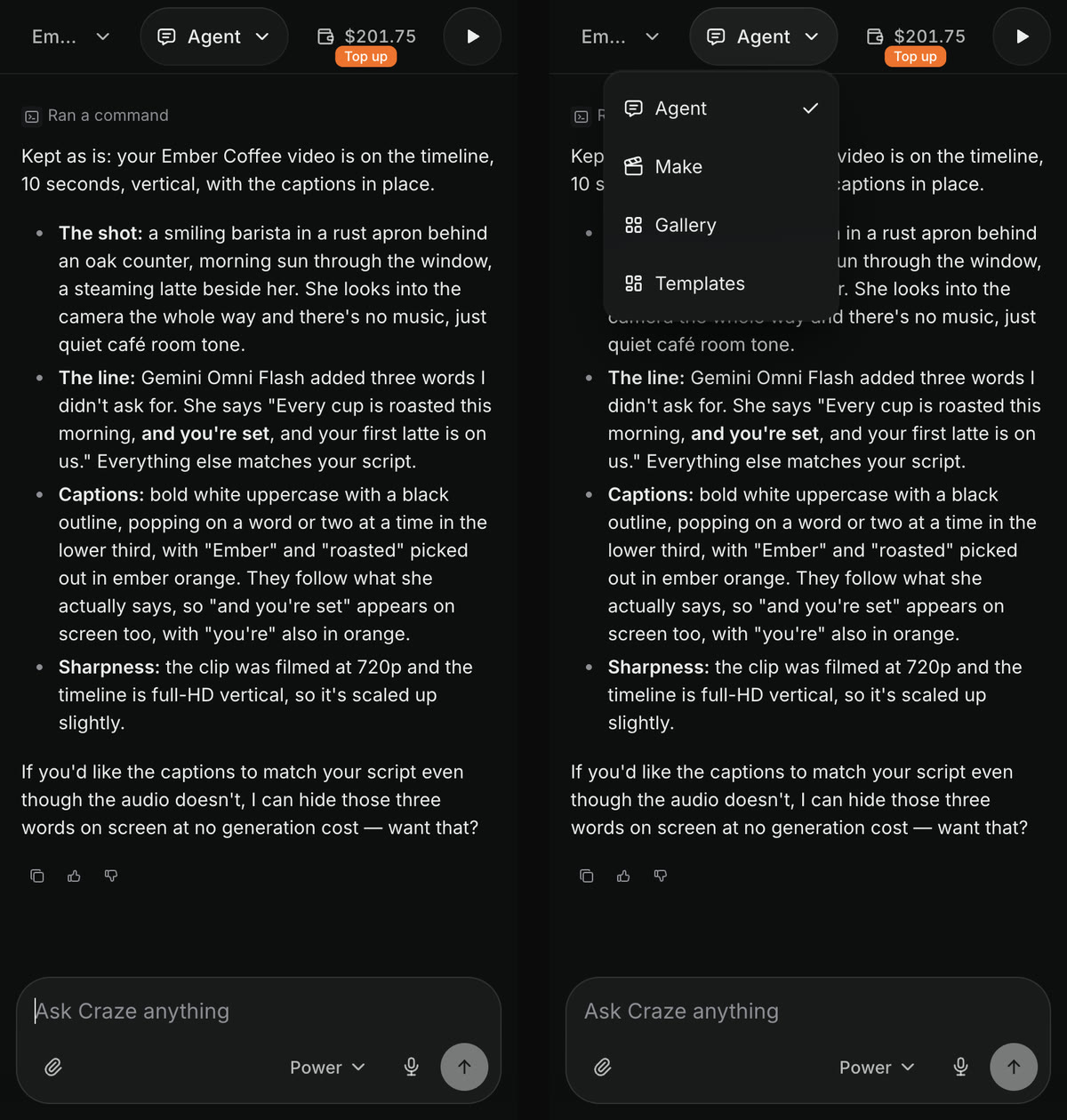
In a Craze project on a phone, the Project view menu at the top of the screen switches what you see. Tap it and choose:

ViewWhat it shows in Craze on a phone
AgentThe chat with the Craze agent
MakeA form to generate a video, image or audio clip with a model you pick
GalleryEvery image, video and audio file in the project
TemplatesExample videos to start from
Two phone screens of a Craze project: on the left the chat with the project name, the Agent menu, the balance and a play button at the top and the Ask Craze anything box at the bottom; on the right the Agent menu open with Agent, Make, Gallery and Templates.
A Craze project on a phone, with the view menu closed and open.

When the Craze agent or Make finishes something, the Project view menu shows a small count of new files waiting in the Gallery, and a message such as "Video ready" offers View to open it.

How do you watch and export your video in Craze on a phone?

You watch and export a Craze video on a phone from the round Preview button at the top right of the project.

  1. Tap the round Preview button. It shows a spinner while the video is updating.
  2. Craze opens the sequence full screen. If the project has more than one sequence, tap a sequence tab under the title to switch.
  3. Tap Export and choose Export video. Export history shows the exports you already made.
  4. Pick your settings and start the export. With Download when ready on, Craze downloads the file when it is ready.
  5. Tap the close button at the top left to go back to the chat.

On the Free plan

Craze exports on the Free plan are MP4 files up to 720p at 30 frames per second, on a phone as on a computer.

What needs a computer in Craze?

Some parts of Craze need a computer with a mouse or trackpad and a larger screen:

  • The timeline, for cutting, trimming and arranging clips by hand.
  • The Assets panel, with uploading, searching and the menu on each file.
  • The Properties inspector, for changing the settings of a clip or caption.
  • Tweak, for pointing at something in the preview to change it.

On a phone, you can still get any of these edits done by asking the Craze agent in the chat, for example "trim the last shot by a second" or "make the captions bigger". The Craze timeline basics guide covers editing by hand on a computer.

How do you read the Craze agent's plan on a phone?

The Craze agent's plan opens full screen on a phone. When the Craze agent has a plan page for a longer video, a plan card appears in the chat, titled with the plan's name or "Your plan is ready"; tap View plan to read it, and close it to get back to the chat. If the Craze agent asks you to approve the plan in a question card, a Read the plan button opens the same page. Reply in the chat to approve the plan or to ask for changes.

Questions people ask

No. Craze runs in your phone's web browser at craze.ai, with nothing to install. Craze switches to a phone layout on its own.

No. The Craze timeline, the Assets panel and the Properties inspector are only on a computer. On a phone you can ask the Craze agent to make any edit for you.

Yes. In a Craze project on your phone, tap the round Preview button at the top right, then tap Export and choose Export video.

PreviousA tour of the Craze appNextWords to know
Table of contents
  • Does Craze work on a phone?
  • What can you do in Craze on a phone?
  • How do you get around the Craze home page on a phone?
  • How do you switch views in a Craze project on a phone?
  • How do you watch and export your video in Craze on a phone?
  • What needs a computer in Craze?
  • How do you read the Craze agent's plan on a phone?
  • Direct
  • Create
  • Edit
  • Models
  • Pricing
  • MCP
  • Contact us
  • Docs
  • Blogs
  • Changelog
  • Privacy
  • Terms
  • Instagram
  • YouTube
  • X
  • LinkedIn
  • English
  • 日本語
  • 한국어
  • Español
  • Deutsch
  • Français
  • Português
  • 简体中文

© 2026 Craze Technologies