Craze
ModelsPricingMCPBlog

Search the docs

Find an article or a question in the Craze docs.

Get started

  • What is Craze?
  • Make your first video
  • A tour of the Craze app
  • Use Craze on your phone
  • Words to know

Work with the Craze agent

  • Describe your video to the Craze agent
  • Answer questions and approve the plan
  • Point at what to change with Tweak
  • Mention files, voices and projects
  • Choose the agent's tier: Efficient, Balanced or Power
  • What the Craze agent can do
  • Go back to an earlier version
  • Write a great brief

Create images, video and sound

  • Make media without the agent
  • Create an image
  • Create a video clip
  • Try a draft first
  • Edit, extend and upscale
  • Remove a background
  • Lip sync and talking photos
  • Motion transfer
  • Voiceovers and voices
  • Music and sound effects
  • Dub a video into another language

Start from a video

  • Start from a template
  • Remake a video
  • Swap people in a video

Edit on the timeline

  • Timeline basics
  • Sequences
  • Trim, split and change speed
  • Captions and transcripts
  • Transitions
  • Effects
  • Animations and keyframes
  • Text and fonts
  • Masks and cutouts
  • Audio
  • Keyboard shortcuts

Your media

  • Upload your files
  • Use the Gallery

Export and share

  • Export a video
  • Share a video with a link

Recipes

  • Make a product ad from product photos
  • Make a UGC-style creator video
  • Turn a talking-head recording into short clips
  • Make a music video cut to the beat

AI models

  • Which AI model should you use in Craze?

Plans and credits

  • Plans and credits

Use Craze from your agent

  • Connect your AI agent to Craze

Account and help

  • Your account and workspace
  • Fix a problem
Browse the docs

Get started

  • What is Craze?
  • Make your first video
  • A tour of the Craze app
  • Use Craze on your phone
  • Words to know

Work with the Craze agent

  • Describe your video to the Craze agent
  • Answer questions and approve the plan
  • Point at what to change with Tweak
  • Mention files, voices and projects
  • Choose the agent's tier: Efficient, Balanced or Power
  • What the Craze agent can do
  • Go back to an earlier version
  • Write a great brief

Create images, video and sound

  • Make media without the agent
  • Create an image
  • Create a video clip
  • Try a draft first
  • Edit, extend and upscale
  • Remove a background
  • Lip sync and talking photos
  • Motion transfer
  • Voiceovers and voices
  • Music and sound effects
  • Dub a video into another language

Start from a video

  • Start from a template
  • Remake a video
  • Swap people in a video

Edit on the timeline

  • Timeline basics
  • Sequences
  • Trim, split and change speed
  • Captions and transcripts
  • Transitions
  • Effects
  • Animations and keyframes
  • Text and fonts
  • Masks and cutouts
  • Audio
  • Keyboard shortcuts

Your media

  • Upload your files
  • Use the Gallery

Export and share

  • Export a video
  • Share a video with a link

Recipes

  • Make a product ad from product photos
  • Make a UGC-style creator video
  • Turn a talking-head recording into short clips
  • Make a music video cut to the beat

AI models

  • Which AI model should you use in Craze?

Plans and credits

  • Plans and credits

Use Craze from your agent

  • Connect your AI agent to Craze

Account and help

  • Your account and workspace
  • Fix a problem
Docs/Your media

Use the Gallery

The Craze Gallery shows every image, video and audio file in a project, made by you or the Craze agent, with filters, stars, a full-screen viewer and quick next steps such as Animate, Extend or Upscale.

Last updated November 18, 2026

Where is the Gallery in Craze?

The Craze Gallery is one of the three views of every project. Switch the Gallery, Editor and Templates toggle at the top of the project page to Gallery. The Gallery shows every image, video and audio file in the project, whether you uploaded it, generated it yourself with Make, or the Craze agent made it.

New generations appear in the Gallery as soon as they start, with a loading tile that names the model making them. When the project is empty, the Gallery says "Your generations land here" and Open Make takes you to Make to create something.

How do you filter and sort the Craze Gallery?

The bar at the top of the Craze Gallery controls what you see and in what order:

  • Filter. All, Images, Videos, Audio or Starred.
  • Grouping. Recent groups items by day (Today, Yesterday and so on). By shot groups them under the shot of the video they belong to, when the Craze agent has made a video with shots; items not in a shot sit under "Not filed".
  • Sort. Newest first, or Starred first, which puts starred items at the top.
  • Layout. Grid shows tiles, with a slider for the tile size. List shows one row per item with how it was made. On a phone, the Gallery is always a two-column grid.
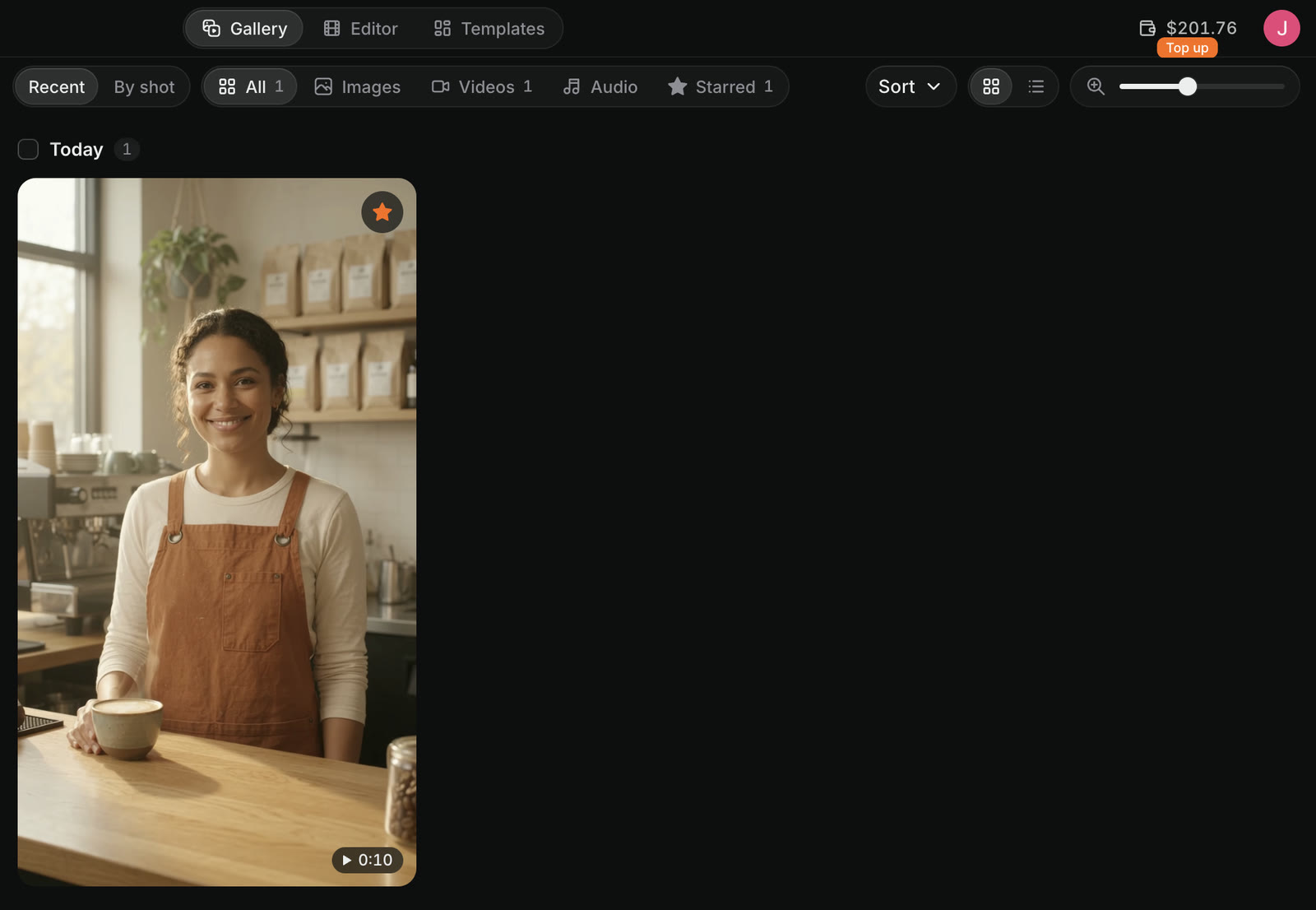
The Craze Gallery with Recent and By shot, filters All, Images, Videos, Audio and Starred with a count on each, Sort, grid and list buttons, a tile size slider, and a Today group holding one starred video.
The bar at the top of the Craze Gallery filters, groups, sorts and sizes the tiles.

How do you star items in the Craze Gallery?

Starring keeps the Craze Gallery items you like easy to find. Hover over an item and click Star, or click Star in the full-screen viewer. Click Unstar to remove it. Starred items show under the Starred filter, and Starred first in Sort puts them at the top of the Gallery.

How do you view an item full screen in Craze?

Click any item in the Craze Gallery to open it in the full-screen viewer. Videos and audio play with their own controls, including playback speed. Use the arrow keys ← and →, or Previous and Next, to move between items.

The side panel of the viewer shows how the item was made:

  • Model: the AI model that made it.
  • Prompt: the prompt it was made from, with Copy prompt.
  • Inputs: the pictures, clips or audio it was made from.
  • Details: its kind, size and settings.

For a draft video, the panel also links to its full-quality final (Open final), and a final links back to its draft (Open draft).

What can you do with an item in the Craze Gallery?

Hover over an item in the Craze Gallery, or open it in the viewer, to see its actions. More (the three dots) lists the rest. Which actions appear depends on the kind of item and where it came from:

ActionWhat it does in Craze
Star / UnstarMarks the item as a favourite
ReuseLoads the same model, prompt, settings and references in Make, without generating anything
RemixOpens a choice of Remix (make videos inspired by the original), Swap or Reuse
Use as referenceAdds the item as a reference to the model you have open in Make
DownloadSaves the file to your computer
Add to timelinePuts the item on the timeline of the open sequence
Add to chatAttaches the item to your next message to the Craze agent
Render finalRenders a full-quality version of a cheap draft video, with its price shown first
DeleteRemoves the item from the project, after you confirm

When you delete an item that is used on the timeline, Craze warns you before it goes.

How do you make something new from a Craze Gallery item?

Every item in the Craze Gallery offers next steps that start a new generation with that item already in place. Open More on the item and choose Make something from this. Craze opens Make with the right task and the item loaded; you pick the model and see the price before you generate.

The next steps Craze offers depend on the kind of item:

Kind of itemNext steps in Craze
ImageAnimate, Edit, Upscale, Remove background, Make it talk, Drive with motion
VideoEdit, Extend, Lip sync, Dub, Add sound
AudioChange voice, Dub, Lip sync onto a video, Voice a photo

A next step only appears when a Craze model can do that task.

How do you select several items in the Craze Gallery?

Select an item's checkbox in the Craze Gallery, or the checkbox next to a day or shot heading to select the whole group. A bar appears with the number selected and actions for all of them at once: Star or Unstar, Use as references, Download and Delete. Press Esc or click Clear selection to deselect.

What does a failed tile in the Craze Gallery mean?

A tile that says "Didn't generate" in the Craze Gallery is a generation that failed, with the reason underneath. A tile that says "Blocked by content policy" was stopped by the model's content filter. Depending on the reason, the tile offers Try again, Edit prompt to change the prompt and generate again, Add credits when your balance ran out, or Manage storage when your storage is full.

Questions people ask

Every image, video and audio file you or the Craze agent generate in a project lands in the Craze Gallery. Switch the Gallery, Editor and Templates toggle at the top of the project page to Gallery to see them.

Yes. Click Reuse on an item in the Craze Gallery to load the same model, prompt, settings and references in Make, change what you want, and generate again.

Star them. In the Craze Gallery, click Star on any item, then use the Starred filter or sort by Starred first to keep them at the top.

PreviousUpload your filesNextExport a video
Table of contents
  • Where is the Gallery in Craze?
  • How do you filter and sort the Craze Gallery?
  • How do you star items in the Craze Gallery?
  • How do you view an item full screen in Craze?
  • What can you do with an item in the Craze Gallery?
  • How do you make something new from a Craze Gallery item?
  • How do you select several items in the Craze Gallery?
  • What does a failed tile in the Craze Gallery mean?
  • Direct
  • Create
  • Edit
  • Models
  • Pricing
  • MCP
  • Contact us
  • Docs
  • Blogs
  • Changelog
  • Privacy
  • Terms
  • Instagram
  • YouTube
  • X
  • LinkedIn
  • English
  • 日本語
  • 한국어
  • Español
  • Deutsch
  • Français
  • Português
  • 简体中文

© 2026 Craze Technologies