
Where is the timeline in Craze?
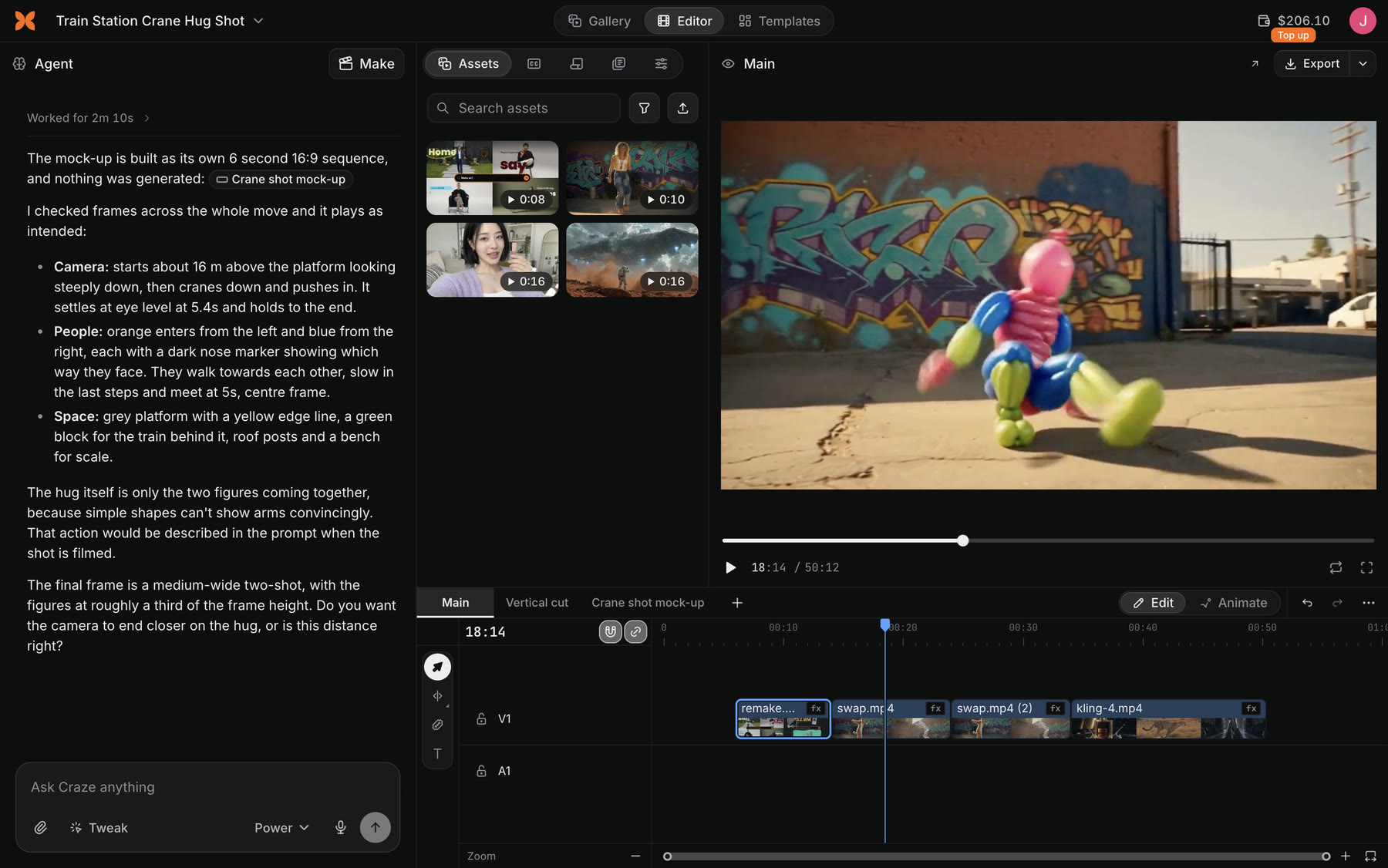
The Craze timeline is the strip along the bottom of the editor in every project. If you see a grid of files instead, switch the Gallery, Editor and Templates toggle at the top of the project page to Editor. The timeline is only on a computer; on a phone, Craze shows a preview of the video instead.
What is on the Craze timeline?
The Craze timeline has these parts, from top to bottom:
- Sequence tabs. Each tab is one cut of your video. Click + to add a sequence, or right-click a tab to Rename, Duplicate, Export or Delete it.
- Edit and Animate toggle. Edit is for cutting and arranging clips. Animate shows each clip's layers and keyframes, and the Graph Editor.
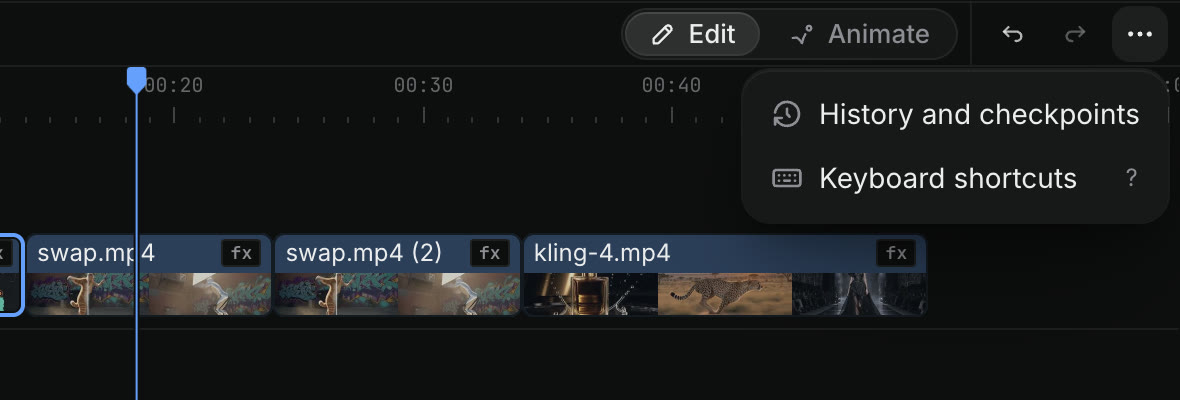
- Undo, redo and More. More holds History and checkpoints, and Keyboard shortcuts.
- Tracks. Captions sit at the top, picture tracks (V1, V2…) in the middle and sound tracks (A1, A2…) at the bottom. Each track can be locked, hidden, muted or played solo.
Which tools does the Craze timeline have?
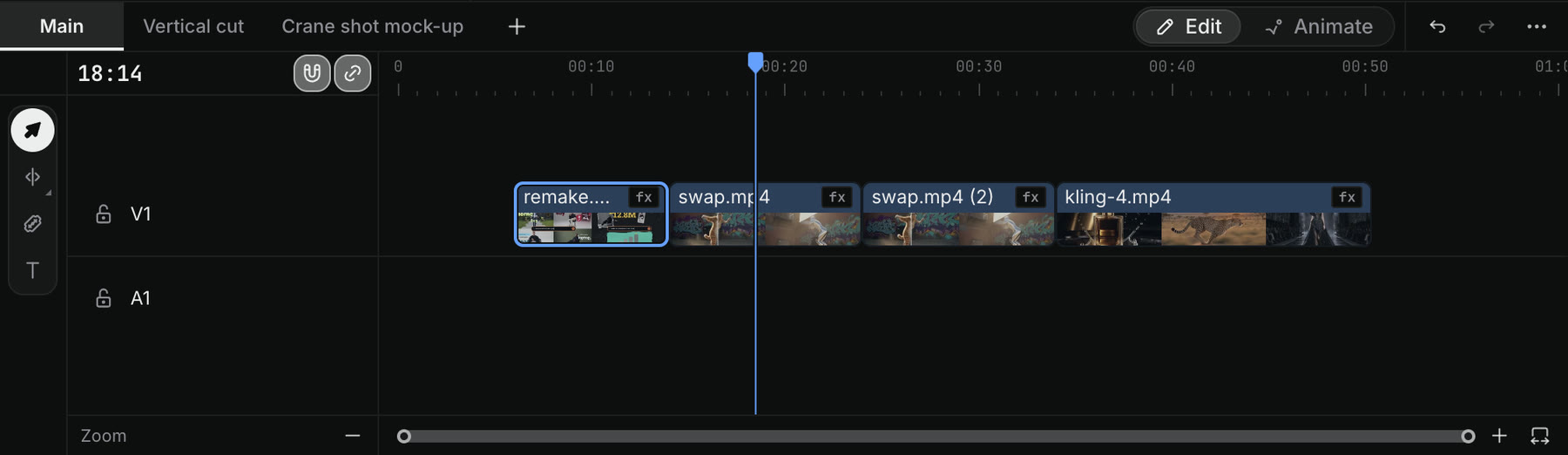
The Craze timeline has five tools in the Tools panel on its left edge. Pick one by clicking it or pressing its key. The Rate Stretch Tool shares a button with the Ripple Edit Tool: click and hold that button to switch between them.
| Tool | Key | What it does |
|---|---|---|
| Selection Tool | V | Select, move and trim clips |
| Ripple Edit Tool | B | Trim an edge and close the gap |
| Rate Stretch Tool | R | Drag an edge to change speed |
| Razor Tool | C | Click a clip to cut it; Shift-click cuts every track |
| Type Tool | T | Click in the preview to add text |
Press Esc to go back to the Selection Tool from any other Craze timeline tool.
How do you play and move around the Craze timeline?
On the Craze timeline:
- Press
Spaceto play or pause. - Press
Jto play backward,Kto pause andLto play forward. - Press
←or→to move the playhead one frame, or holdShiftto move five frames. - Press
Hometo go to the start andEndto go to the end. - Press
+or-to zoom in or out, and\to fit the whole sequence on screen.
How do you add a clip to the Craze timeline?
To add a file to the Craze timeline:
- Open Assets in the media panel at the top left of the Craze editor.
- Open the menu on the file you want.
- Choose Add to timeline.
Files in the Gallery have the same Add to timeline option in their More menu. To bring in a file from your computer first, click Upload in Assets.
How do you cut and trim clips on the Craze timeline?
You can cut and trim clips on the Craze timeline in several ways:
- Cut at the playhead. Press
⌘K(Ctrl+Kon Windows) to cut the clips at the playhead, or⇧⌘K(Ctrl+Shift+K) to cut every track. - Cut with the Razor Tool. Press
C, then click a clip where you want to cut it. - Trim an edge. With the Selection Tool, drag the start or end of a clip.
- Trim without leaving a gap. With the Ripple Edit Tool (
B), drag an edge and the later clips move up to close the gap. - Trim to the playhead. Press
Qto trim the start of a clip to the playhead, orWto trim the end, closing the gap either way. - Delete a gap. Click the empty space between two clips and press
Delete.
How do you undo a change on the Craze timeline?
Press ⌘Z (Ctrl+Z on Windows) to undo a change on the Craze timeline, and ⇧⌘Z to redo it. To go further back, open More above the timeline and choose History and checkpoints. There you can save a named checkpoint of the sequence and restore an earlier version.
Can the Craze agent and you edit the same timeline?
Yes. The Craze agent and you work on the same timeline. Ask the Craze agent in the chat to make an edit, such as "tighten the cuts" or "add a fade at the end", and you will see it on the timeline. You can then change it by hand, and the Craze agent sees your changes the next time you ask it something.