
Where do you make media yourself in Craze?
Craze has two places to generate media without the Craze agent:
- The home page. The Video, Image and Audio tabs at the top of the Craze home page each open a form for that kind of media. When you click Generate, Craze creates a new project and opens its Gallery, where your result appears.
- Inside a project. Click Make in the header of the Agent panel on the left of a Craze project. The chat is swapped for the same form, with a Video, Image and Audio switch at the top. Press
⌘.(Ctrl+.on Windows) to switch between Agent and Make, even while you are typing a prompt.
Either way, you choose every setting yourself and see the price before anything is generated.
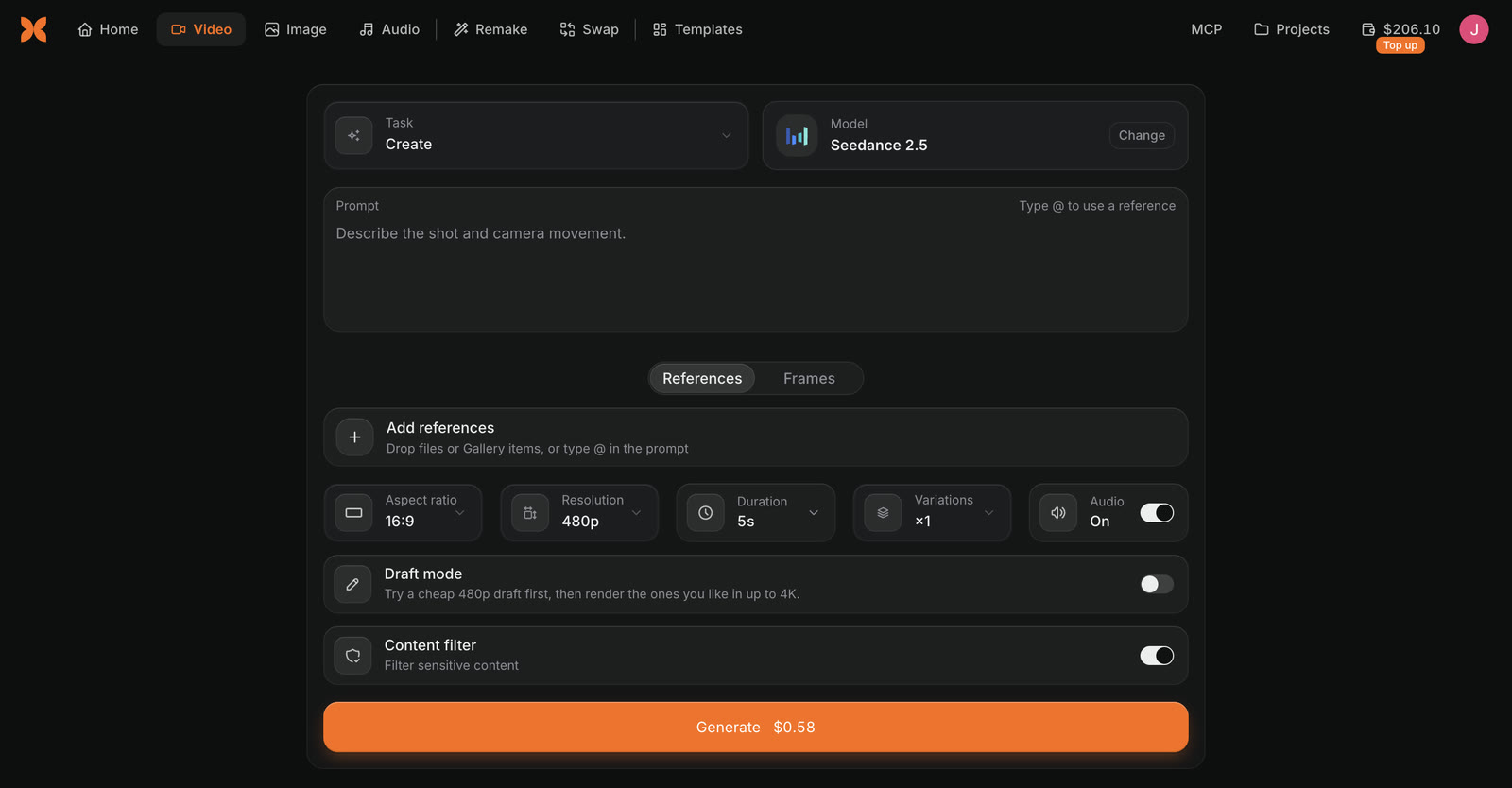
How do you generate something with Make in Craze?
To generate media yourself in Craze:
- Open the Video, Image or Audio tab on the Craze home page, or click Make in a project.
- Pick what you want to do from Task, such as Create, Edit or Lip sync.
- Check the Model. Click Change to search the models that can do that task.
- Write the Prompt, and add any pictures, clips or audio the task needs.
- Set the options, such as aspect ratio, resolution and duration.
- Click Generate. The button shows the price.
If Generate is greyed out, it tells you what is missing, for example "Add a prompt first" or "Pick a voice".
Which tasks can you do in Craze Make?
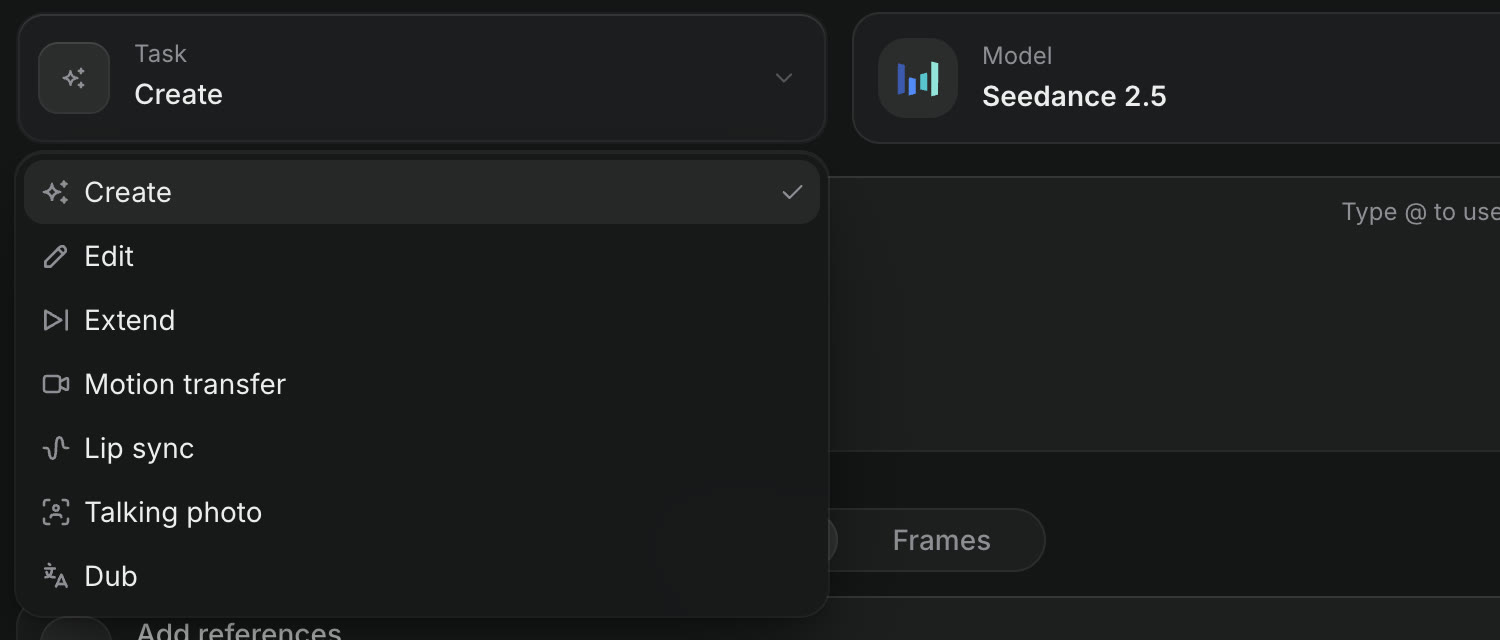
Craze Make lists only the tasks that at least one model can do. The tasks in each tab are:
| Tab in Craze Make | Tasks |
|---|---|
| Video | Create, Edit, Extend, Motion transfer, Lip sync, Talking photo, Dub |
| Image | Create, Edit, Upscale, Remove background |
| Audio | Voice, Music, Sound effects, Sound for video, Voice changer, Dub |
Each task changes the form. Extend asks for a "Video to extend" and "What happens next"; Lip sync asks for a Video and Speech; Voice asks for a voice and a Script.
How do you choose a model in Craze Make?
The Model box in Craze Make shows the model that will run the task. Click Change to open the model list, search it with "Search models", and click a model to select it. The list only shows models that can do the task you picked, so switching from Create to Extend, for example, changes the models on offer.
For every model and its prices, see the Craze models page.
How do you add references in Craze Make?
References are the pictures, clips or audio a Craze generation draws on, such as a product photo or a character.
- In Craze Make, click Add references, or drop files or Gallery items onto it.
- Pick from the Images, Videos and Audio in the project, or upload a new file.
- Each reference gets an @ name from its file name. Type
@in the prompt to choose one, or click a reference to add its name to the prompt.
Below the references, Craze says how many images, videos and audio clips the chosen model takes. In a project, you can also open the More menu on any Gallery item and choose Use as reference.
How does pricing work in Craze Make?
The Generate button in Craze Make shows the price for the current settings. The price covers every variation and changes as you change the model, resolution, duration or other options. For a voiceover, the price follows the length of the script as you type it.
If your balance is too low, the button says "Not enough credits" and Add credits opens a top-up. Credits are spent only when you click Generate. See the Craze pricing page for plans and credits.
Where do your results appear in Craze?
Every image, video and audio clip you make in Craze lands in the project's Gallery. While it generates, its tile shows the model and how long it has been running. If a generation fails, the tile says "Didn't generate" with Try again and Edit prompt.
From a Gallery item you can:
- Reuse to load the same model, settings and references back into Make.
- Add to timeline or Add to chat from the More menu.
- Pick a next step under "Make something from this", such as Animate, Extend or Upscale.
Generating from the Craze home page creates a new project, so your result is in that project's Gallery and on the Projects tab.