
How do you add text to a video in Craze?
The Type Tool in Craze adds text straight onto the preview.
- In the Craze editor, press
T, or click the Type Tool in the Tools panel on the left of the timeline. - Click in the preview where the text should go. To set how wide the text box is, drag instead of clicking.
- Type your text.
- Press
Esc, click somewhere else, or pick another tool to finish.
Craze adds a text clip at the playhead, on the first free picture track above what plays there, so the text sits on top of your video. Drag the clip on the timeline to change when the text appears and how long it stays.
How do you change existing text in Craze?
To change the words of a text clip in Craze, pick the Type Tool (T) and click the text in the preview, then type. You can also select the text clip on the timeline, open Properties in the media panel, and edit Source text in the Text section.
How do you change the font, size and style of text in Craze?
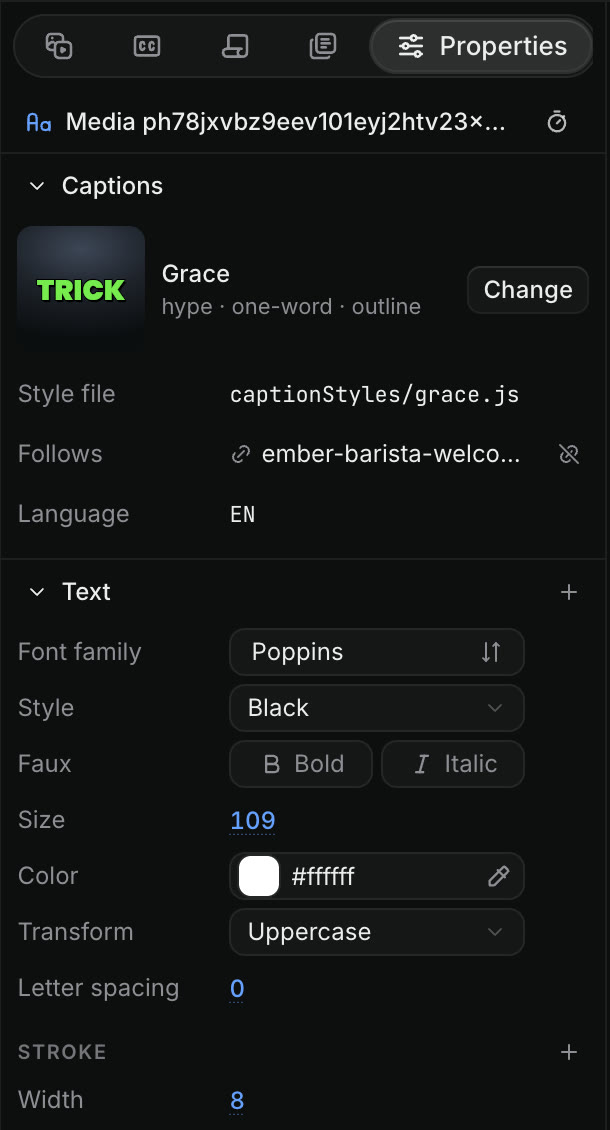
The Text section of Properties holds a Craze text clip's settings. Select the text clip on the timeline and open Properties. The settings are in two groups:
- Character: Font family, Style (weight and italic), Faux bold and italic, Font size, line height and Letter spacing.
- Paragraph: alignment, text direction, and the most lines the text may take.
The text's colour is in the Appearance section below, and its position, scale, rotation and opacity are in Transform.
Which fonts can you use in Craze?
Craze has two sets of fonts in one list:
- Built-in fonts, such as Inter, Montserrat, Poppins, Oswald, Playfair Display, Noto Sans JP and TikTok Sans. They are always available.
- Google Fonts, the full Google Fonts library, which loads when you open the list.
To pick a font, click Font family in Properties, then type in Search Google Fonts or filter by All, Sans, Serif, Display, Handwriting or Mono. Fonts the project already uses are listed first under In this project, then fonts you picked recently under Recent. If Google Fonts can't load, Craze still lists the built-in fonts.
What are Faux Bold and Faux Italic in Craze?
Faux Bold and Faux Italic in Craze make text look bold or slanted even when the font has no bold or italic style of its own. Select the text clip, open Properties, and click Bold or Italic next to Faux in the Text section. When a font does have a real bold or italic, pick it from Style instead; it usually looks better than the faux version.
How do you animate text in Craze?
Craze has text animations in Library, then Animations, then Text. They include Typewriter, Word reveal, Word pop, Slide up, Text fade, Blur reveal, Karaoke highlight and Tracking reveal.
- Select the text clip on the Craze timeline.
- Open Library, then Animations, and click Text.
- Click In, Out or Emphasis beside an animation to choose when it plays, or drag it onto the clip.
Text animations also work on caption clips. For moves of the whole text box, such as a fade or a pop, use the In, Out and Emphasis animations, described in the Craze guide to animations and keyframes.
Can Craze show Chinese, Japanese, Korean and other languages in text?
Yes. Craze shows text and captions in Chinese, Japanese, Korean, Hindi, Bengali, Tamil, Arabic, Hebrew, Thai, Russian, Greek, Vietnamese and other writing systems, as well as accented letters, arrows and symbols such as stars. Type or paste the text into a text clip or caption, and it looks the same in the Craze preview and in the exported video. You can also ask the Craze agent, for example "add a Japanese title at the start".