Craze
ModelsPricingMCPBlog

Search the docs

Find an article or a question in the Craze docs.

Get started

  • What is Craze?
  • Make your first video
  • A tour of the Craze app
  • Use Craze on your phone
  • Words to know

Work with the Craze agent

  • Describe your video to the Craze agent
  • Answer questions and approve the plan
  • Point at what to change with Tweak
  • Mention files, voices and projects
  • Choose the agent's tier: Efficient, Balanced or Power
  • What the Craze agent can do
  • Go back to an earlier version
  • Write a great brief

Create images, video and sound

  • Make media without the agent
  • Create an image
  • Create a video clip
  • Try a draft first
  • Edit, extend and upscale
  • Remove a background
  • Lip sync and talking photos
  • Motion transfer
  • Voiceovers and voices
  • Music and sound effects
  • Dub a video into another language

Start from a video

  • Start from a template
  • Remake a video
  • Swap people in a video

Edit on the timeline

  • Timeline basics
  • Sequences
  • Trim, split and change speed
  • Captions and transcripts
  • Transitions
  • Effects
  • Animations and keyframes
  • Text and fonts
  • Masks and cutouts
  • Audio
  • Keyboard shortcuts

Your media

  • Upload your files
  • Use the Gallery

Export and share

  • Export a video
  • Share a video with a link

Recipes

  • Make a product ad from product photos
  • Make a UGC-style creator video
  • Turn a talking-head recording into short clips
  • Make a music video cut to the beat

AI models

  • Which AI model should you use in Craze?

Plans and credits

  • Plans and credits

Use Craze from your agent

  • Connect your AI agent to Craze

Account and help

  • Your account and workspace
  • Fix a problem
Browse the docs

Get started

  • What is Craze?
  • Make your first video
  • A tour of the Craze app
  • Use Craze on your phone
  • Words to know

Work with the Craze agent

  • Describe your video to the Craze agent
  • Answer questions and approve the plan
  • Point at what to change with Tweak
  • Mention files, voices and projects
  • Choose the agent's tier: Efficient, Balanced or Power
  • What the Craze agent can do
  • Go back to an earlier version
  • Write a great brief

Create images, video and sound

  • Make media without the agent
  • Create an image
  • Create a video clip
  • Try a draft first
  • Edit, extend and upscale
  • Remove a background
  • Lip sync and talking photos
  • Motion transfer
  • Voiceovers and voices
  • Music and sound effects
  • Dub a video into another language

Start from a video

  • Start from a template
  • Remake a video
  • Swap people in a video

Edit on the timeline

  • Timeline basics
  • Sequences
  • Trim, split and change speed
  • Captions and transcripts
  • Transitions
  • Effects
  • Animations and keyframes
  • Text and fonts
  • Masks and cutouts
  • Audio
  • Keyboard shortcuts

Your media

  • Upload your files
  • Use the Gallery

Export and share

  • Export a video
  • Share a video with a link

Recipes

  • Make a product ad from product photos
  • Make a UGC-style creator video
  • Turn a talking-head recording into short clips
  • Make a music video cut to the beat

AI models

  • Which AI model should you use in Craze?

Plans and credits

  • Plans and credits

Use Craze from your agent

  • Connect your AI agent to Craze

Account and help

  • Your account and workspace
  • Fix a problem
Docs/Edit on the timeline

Trim, split and change speed

The Craze timeline cuts clips with the Razor Tool and Add Edit, trims them with ripple edits that close gaps, changes speed with Rate Stretch or Speed/Duration, and freezes frames with Frame Hold.

Last updated November 18, 2026

How do you split a clip in Craze?

The Craze timeline splits clips in three ways:

  • Add Edit. Put the playhead where you want the cut and press ⌘K (Ctrl+K on Windows). Craze cuts the selected clips there, or right-click a clip and choose Add Edit.
  • Add Edit to All Tracks. Press ⇧⌘K (Ctrl+Shift+K) to cut every track at the playhead.
  • Razor Tool. Press C, then click a clip where you want to cut it. Shift-click cuts every track at that point. Press Esc to go back to the Selection Tool.

Splitting doesn't remove anything; it turns one clip into two that you can trim, move or delete separately.
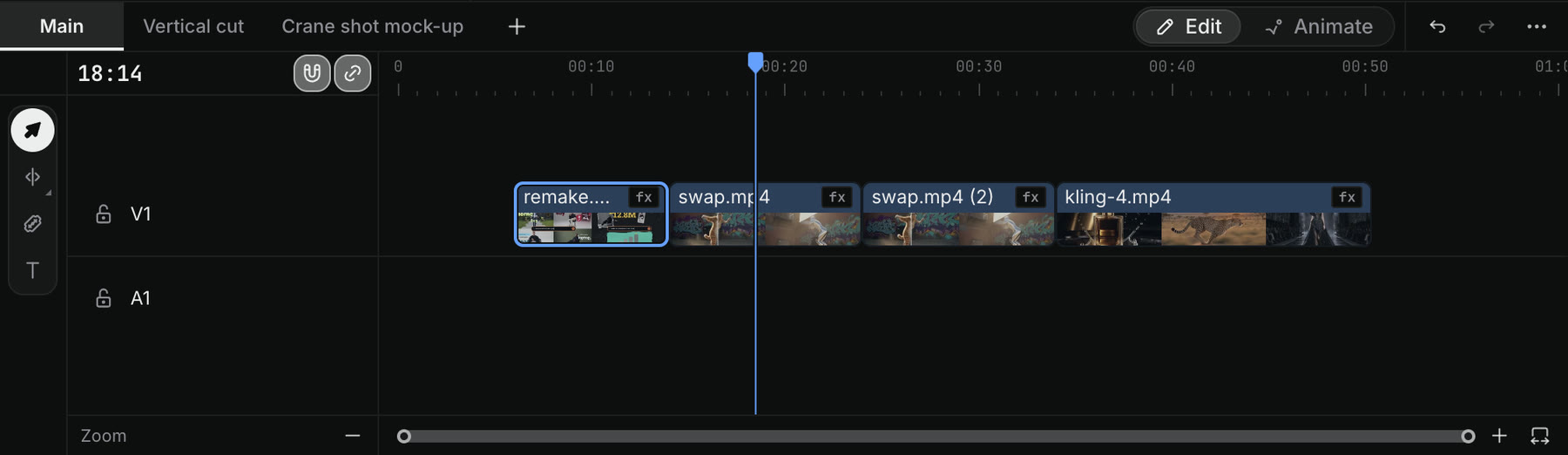
The Craze timeline with sequence tabs along the top, the Tools panel on the left and clips on track V1.
The Razor Tool and the other editing tools sit in the Tools panel on the left of the Craze timeline.

How do you trim a clip in Craze?

To trim a clip on the Craze timeline, pick the Selection Tool (V) and drag the start or end of the clip. Dragging an edge inward shortens the clip and leaves a gap. Dragging it outward shows more of the clip, up to the first or last frame of the original media.

How do you trim without leaving a gap in Craze?

A ripple edit in Craze trims a clip and moves every later clip along with it, so no gap is left behind.

  1. Pick the Ripple Edit Tool on the Craze timeline, or press B.
  2. Drag the start or end of a clip.

The clips after that edge move to stay joined to the clip, on every unlocked track, so picture and sound stay in sync. Lock a track first if you want its clips to stay where they are.

To ripple trim to the playhead without picking a tool, press Q to trim the start of the clip under the playhead to the playhead, or W to trim its end. Both close the gap.

How do you delete a clip or a gap in Craze?

The Craze timeline has two ways to delete:

CommandKeyWhat it does
ClearDeleteRemoves the selected clips and leaves a gap
Ripple Delete⇧DeleteRemoves the selected clips and closes the gap

Both are also in the menu when you right-click a clip. To close an empty gap between two clips, click the gap and press Delete, or right-click it and choose Ripple Delete.

How do you change the speed of a clip in Craze?

The Craze timeline changes clip speed in two ways.

Rate Stretch Tool. Press R, or click and hold the Ripple Edit Tool button and choose Rate Stretch Tool. Drag the edge of a clip: making it longer slows it down, and making it shorter speeds it up, so the clip always plays from the same start to the same end.

Speed/Duration. For an exact number:

  1. Right-click the clip on the Craze timeline and choose Speed/Duration…, or select it and click Adjust speed… in Properties.
  2. In Clip Speed / Duration, type a Speed as a percentage, such as 200% for double speed or 50% for half speed, or type a Duration in seconds.
  3. Click Apply timing.

Speed and duration stay linked, so changing one changes the other. Craze applies the change to linked video and audio together. For an image, the same command opens Duration, which sets how long the image stays on screen.

How do you freeze a frame in Craze?

To freeze a frame of a video clip in Craze, move the playhead to the frame you want, right-click the clip and choose one of these:

  • Add Frame Hold holds the frame at the playhead from there to the end of the clip.
  • Insert Frame Hold Segment cuts the clip at the playhead, holds that frame for 2 seconds, and moves the rest of the clip and its linked clips later.

A held frame plays no sound. Frame Hold works on video clips only.

How do you link, unlink or turn off clips in Craze?

Right-click a clip on the Craze timeline for these switches:

  • Link joins the selected video and audio clips so they move and trim together. Select two or more clips first.
  • Unlink separates a linked clip so you can move its picture and sound on their own.
  • Enable turns a clip on or off. A disabled clip stays on the timeline but doesn't play or show in the video.

How do you copy one clip's settings to other clips in Craze?

Paste Attributes in Craze copies one clip's look and settings onto other clips.

  1. Select the clip with the settings you want and press ⌘C (Ctrl+C).
  2. Select the clips to change.
  3. Press ⌥⌘V (Ctrl+Alt+V), or right-click and choose Paste Attributes….
  4. Tick what to copy, such as Motion, Opacity, effects or Volume. Tick Scale Attribute Times to stretch any animation to fit each clip's length.
  5. Click OK.

To undo a clip's changes, right-click it and choose Remove Attributes…. Tick what to reset or remove and click OK: Craze deletes the ticked effects and resets Motion and Opacity to their defaults.

Questions people ask

Yes. The Ripple Edit Tool in Craze, on the B key, trims a clip and moves the later clips on every unlocked track, so picture and sound stay in sync.

Yes. In Craze, drag a clip's edge with the Rate Stretch Tool (R), or right-click the clip and choose Speed/Duration… to type an exact speed or duration.

Yes. Right-click a video clip on the Craze timeline and choose Add Frame Hold or Insert Frame Hold Segment to freeze the frame at the playhead.

Yes. Paste Attributes in Craze copies a clip's Motion, Opacity, effects and Volume onto the other clips you select.

PreviousSequencesNextCaptions and transcripts
Table of contents
  • How do you split a clip in Craze?
  • How do you trim a clip in Craze?
  • How do you trim without leaving a gap in Craze?
  • How do you delete a clip or a gap in Craze?
  • How do you change the speed of a clip in Craze?
  • How do you freeze a frame in Craze?
  • How do you link, unlink or turn off clips in Craze?
  • How do you copy one clip's settings to other clips in Craze?
  • Direct
  • Create
  • Edit
  • Models
  • Pricing
  • MCP
  • Contact us
  • Docs
  • Blogs
  • Changelog
  • Privacy
  • Terms
  • Instagram
  • YouTube
  • X
  • LinkedIn
  • English
  • 日本語
  • 한국어
  • Español
  • Deutsch
  • Français
  • Português
  • 简体中文

© 2026 Craze Technologies