Craze
ModelsPricingMCPBlog

Search the docs

Find an article or a question in the Craze docs.

Get started

  • What is Craze?
  • Make your first video
  • A tour of the Craze app
  • Use Craze on your phone
  • Words to know

Work with the Craze agent

  • Describe your video to the Craze agent
  • Answer questions and approve the plan
  • Point at what to change with Tweak
  • Mention files, voices and projects
  • Choose the agent's tier: Efficient, Balanced or Power
  • What the Craze agent can do
  • Go back to an earlier version
  • Write a great brief

Create images, video and sound

  • Make media without the agent
  • Create an image
  • Create a video clip
  • Try a draft first
  • Edit, extend and upscale
  • Remove a background
  • Lip sync and talking photos
  • Motion transfer
  • Voiceovers and voices
  • Music and sound effects
  • Dub a video into another language

Start from a video

  • Start from a template
  • Remake a video
  • Swap people in a video

Edit on the timeline

  • Timeline basics
  • Sequences
  • Trim, split and change speed
  • Captions and transcripts
  • Transitions
  • Effects
  • Animations and keyframes
  • Text and fonts
  • Masks and cutouts
  • Audio
  • Keyboard shortcuts

Your media

  • Upload your files
  • Use the Gallery

Export and share

  • Export a video
  • Share a video with a link

Recipes

  • Make a product ad from product photos
  • Make a UGC-style creator video
  • Turn a talking-head recording into short clips
  • Make a music video cut to the beat

AI models

  • Which AI model should you use in Craze?

Plans and credits

  • Plans and credits

Use Craze from your agent

  • Connect your AI agent to Craze

Account and help

  • Your account and workspace
  • Fix a problem
Browse the docs

Get started

  • What is Craze?
  • Make your first video
  • A tour of the Craze app
  • Use Craze on your phone
  • Words to know

Work with the Craze agent

  • Describe your video to the Craze agent
  • Answer questions and approve the plan
  • Point at what to change with Tweak
  • Mention files, voices and projects
  • Choose the agent's tier: Efficient, Balanced or Power
  • What the Craze agent can do
  • Go back to an earlier version
  • Write a great brief

Create images, video and sound

  • Make media without the agent
  • Create an image
  • Create a video clip
  • Try a draft first
  • Edit, extend and upscale
  • Remove a background
  • Lip sync and talking photos
  • Motion transfer
  • Voiceovers and voices
  • Music and sound effects
  • Dub a video into another language

Start from a video

  • Start from a template
  • Remake a video
  • Swap people in a video

Edit on the timeline

  • Timeline basics
  • Sequences
  • Trim, split and change speed
  • Captions and transcripts
  • Transitions
  • Effects
  • Animations and keyframes
  • Text and fonts
  • Masks and cutouts
  • Audio
  • Keyboard shortcuts

Your media

  • Upload your files
  • Use the Gallery

Export and share

  • Export a video
  • Share a video with a link

Recipes

  • Make a product ad from product photos
  • Make a UGC-style creator video
  • Turn a talking-head recording into short clips
  • Make a music video cut to the beat

AI models

  • Which AI model should you use in Craze?

Plans and credits

  • Plans and credits

Use Craze from your agent

  • Connect your AI agent to Craze

Account and help

  • Your account and workspace
  • Fix a problem
Docs/Edit on the timeline

Effects

Craze has video effects such as Colour adjust, Gaussian blur, Film grain and Chroma key in Library > Effects; each clip's effects stack up in Properties, where you can bypass, reorder, reset or remove them.

Last updated November 18, 2026

Where are effects in Craze?

Craze effects are in the Library tab of the media panel at the top left of the editor. Open Library, then Effects. The effects are grouped by kind, and each one shows a preview when you hover over it, with a one-line description. To find one quickly, type in Search the library.

Which effects does Craze have?

The Craze Library has these effects:

EffectGroupWhat it does
Chroma keyKeyingRemoves a green or blue screen colour
Colour adjustColourExposure, contrast, saturation, temperature, tint and hue
Black & whiteColourRemoves colour, with optional contrast
Warm / sepiaColourA warm sepia tone
DuotoneColourMaps shadows and highlights to two colours
Gaussian blurBlurSoftens the picture
SharpenBlurCrisper edges and detail
Directional blurBlurMotion blur along one direction
VignetteStylizeDarkens the frame edges
GlowStylizeBlooms the bright areas
PixelateStylizeLarge square pixels
Film grainStylizeMoving film grain
RGB glitchStylizeChannel split with jittering bands
Linear revealTransformReveals the picture along a soft edge

How do you add an effect to a clip in Craze?

To add an effect to a clip in Craze:

  1. Open Library, then Effects, in the media panel.
  2. Drag the effect onto a clip on the timeline.

Or select one or more clips first and double-click the effect, or click its Add button, to apply it to every selected clip. You can also add an effect from Properties: select the clip, open Properties, and click Add effect in the Effects section. Type in Search effects, then double-click an effect or press Enter.
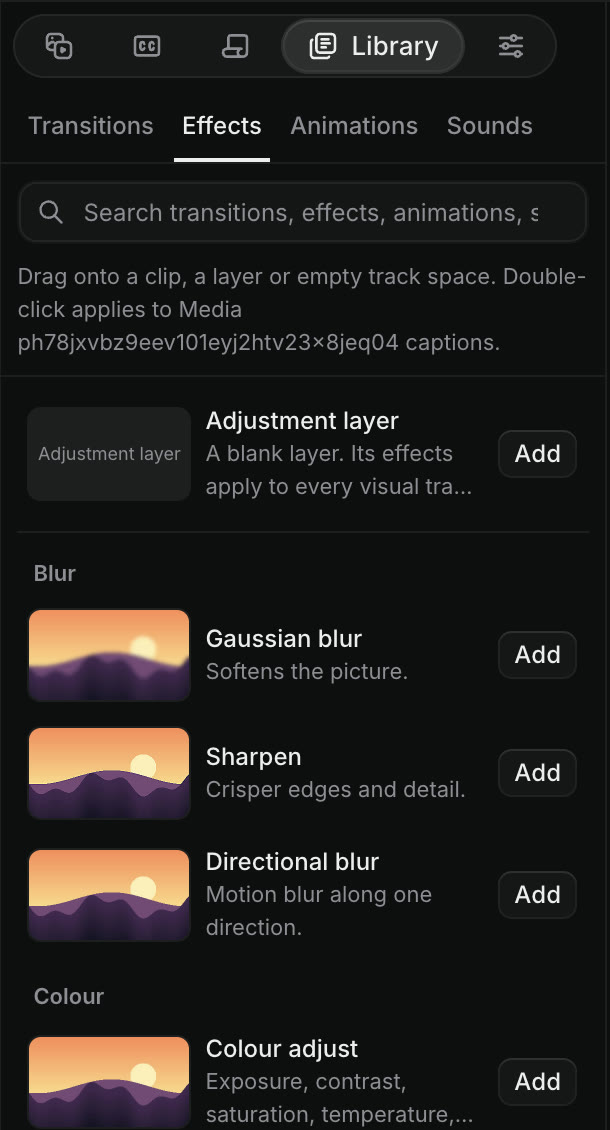
Library, then Effects, in the Craze editor, with a hint that reads Drag onto a clip, a layer or empty track space, then Adjustment layer, a Blur group with Gaussian blur, Sharpen and Directional blur, and a Colour group with Colour adjust, each with an Add button.
Craze effects in the Library, grouped by kind.

How do you change an effect's settings in Craze?

Every effect on a Craze clip is listed in the Effects section of Properties, in the order Craze applies them. Select the clip, open Properties, and change the effect's settings, such as the amount of blur or the colour of a Duotone. Each effect has these controls on its header row:

  • fx turns the effect on or off. Turning it off bypasses the effect without losing its settings.
  • Reset puts the effect's settings back to their defaults. It appears once you have changed something.
  • The menu (…) has Move up and Move down to change the order of the effects, and Remove effect.

Most effect settings can also be animated with keyframes. The Craze guide to animations and keyframes explains how.

How do you put an effect on several tracks at once in Craze?

An adjustment layer in Craze applies its effects to every picture track below it. Use one to colour-grade or blur a whole section of the video at once.

  1. Open Library, then Effects. Adjustment layer is at the top of the list.
  2. Drag it onto an empty part of a picture track above your clips, or double-click it.
  3. Drag effects onto the adjustment layer.

You can also drag an effect straight onto empty track space, and Craze makes a new adjustment layer for it. Trim the adjustment layer like a clip to choose when its effects start and end, and drag a transition onto its edge to bring the effects in gradually.

How do you remove a green screen in Craze?

The Chroma key effect in Craze removes a green or blue screen background.

  1. Open Library, then Effects, then find Chroma key under Keying.
  2. Drag Chroma key onto your green screen clip.

Craze picks the screen colour for you. To fine-tune the result, select the clip and open Properties, where Chroma key has a Setting menu (Default, Relaxed, Aggressive or Custom) and controls for the edge and colour spill. Put another video or image on the track below to show it behind your subject. To cut out a person without a green screen, use an Object mask, described in the Craze guide to masks and cutouts.

Can the Craze agent add effects for me?

Yes. Ask the Craze agent in the chat, for example "give the whole video a warm film look with grain" or "remove the green screen from this clip". The Craze agent uses the same effects as the Library, and they appear in Properties where you can change or remove them.

Questions people ask

Yes. Craze removes green and blue screen backgrounds with its Chroma key effect, in Library, then Effects, then Keying.

Yes. Select the clips and double-click the effect in the Craze Library, or put the effect on an adjustment layer so it applies to every picture track below it.

Yes. Click the fx switch next to the effect in Craze's Properties panel to bypass it. Click it again to turn the effect back on.

PreviousTransitionsNextAnimations and keyframes
Table of contents
  • Where are effects in Craze?
  • Which effects does Craze have?
  • How do you add an effect to a clip in Craze?
  • How do you change an effect's settings in Craze?
  • How do you put an effect on several tracks at once in Craze?
  • How do you remove a green screen in Craze?
  • Can the Craze agent add effects for me?
  • Direct
  • Create
  • Edit
  • Models
  • Pricing
  • MCP
  • Contact us
  • Docs
  • Blogs
  • Changelog
  • Privacy
  • Terms
  • Instagram
  • YouTube
  • X
  • LinkedIn
  • English
  • 日本語
  • 한국어
  • Español
  • Deutsch
  • Français
  • Português
  • 简体中文

© 2026 Craze Technologies