Craze
ModelsPricingMCPBlog

Search the docs

Find an article or a question in the Craze docs.

Get started

  • What is Craze?
  • Make your first video
  • A tour of the Craze app
  • Use Craze on your phone
  • Words to know

Work with the Craze agent

  • Describe your video to the Craze agent
  • Answer questions and approve the plan
  • Point at what to change with Tweak
  • Mention files, voices and projects
  • Choose the agent's tier: Efficient, Balanced or Power
  • What the Craze agent can do
  • Go back to an earlier version
  • Write a great brief

Create images, video and sound

  • Make media without the agent
  • Create an image
  • Create a video clip
  • Try a draft first
  • Edit, extend and upscale
  • Remove a background
  • Lip sync and talking photos
  • Motion transfer
  • Voiceovers and voices
  • Music and sound effects
  • Dub a video into another language

Start from a video

  • Start from a template
  • Remake a video
  • Swap people in a video

Edit on the timeline

  • Timeline basics
  • Sequences
  • Trim, split and change speed
  • Captions and transcripts
  • Transitions
  • Effects
  • Animations and keyframes
  • Text and fonts
  • Masks and cutouts
  • Audio
  • Keyboard shortcuts

Your media

  • Upload your files
  • Use the Gallery

Export and share

  • Export a video
  • Share a video with a link

Recipes

  • Make a product ad from product photos
  • Make a UGC-style creator video
  • Turn a talking-head recording into short clips
  • Make a music video cut to the beat

AI models

  • Which AI model should you use in Craze?

Plans and credits

  • Plans and credits

Use Craze from your agent

  • Connect your AI agent to Craze

Account and help

  • Your account and workspace
  • Fix a problem
Browse the docs

Get started

  • What is Craze?
  • Make your first video
  • A tour of the Craze app
  • Use Craze on your phone
  • Words to know

Work with the Craze agent

  • Describe your video to the Craze agent
  • Answer questions and approve the plan
  • Point at what to change with Tweak
  • Mention files, voices and projects
  • Choose the agent's tier: Efficient, Balanced or Power
  • What the Craze agent can do
  • Go back to an earlier version
  • Write a great brief

Create images, video and sound

  • Make media without the agent
  • Create an image
  • Create a video clip
  • Try a draft first
  • Edit, extend and upscale
  • Remove a background
  • Lip sync and talking photos
  • Motion transfer
  • Voiceovers and voices
  • Music and sound effects
  • Dub a video into another language

Start from a video

  • Start from a template
  • Remake a video
  • Swap people in a video

Edit on the timeline

  • Timeline basics
  • Sequences
  • Trim, split and change speed
  • Captions and transcripts
  • Transitions
  • Effects
  • Animations and keyframes
  • Text and fonts
  • Masks and cutouts
  • Audio
  • Keyboard shortcuts

Your media

  • Upload your files
  • Use the Gallery

Export and share

  • Export a video
  • Share a video with a link

Recipes

  • Make a product ad from product photos
  • Make a UGC-style creator video
  • Turn a talking-head recording into short clips
  • Make a music video cut to the beat

AI models

  • Which AI model should you use in Craze?

Plans and credits

  • Plans and credits

Use Craze from your agent

  • Connect your AI agent to Craze

Account and help

  • Your account and workspace
  • Fix a problem
Docs/Account and help

Your account and workspace

Your Craze account menu holds Usage, Billing, Support, language and privacy settings, and your Craze workspace holds the projects, credits, plan and custom voices you work with.

Last updated November 18, 2026

What is in the Craze account menu?

The Craze account menu opens from your avatar at the top right of the home page and of every project. It shows your name and email, then:

Menu itemWhat it does in Craze
UsageShows your credit balance, storage and usage, with Top up and Auto-reload
BillingOpens your plan, upgrades, payment details and Credit activity
SupportOpens a chat with the Craze team
Use Craze via MCPOpens the Craze MCP setup page in a new tab
Manage preferencesOpens your privacy choices; shown only in regions where privacy rules give you a choice about tracking
LanguageSwitches the language of the Craze app
Sign outSigns you out of Craze on this browser

A small dot on your avatar means the Craze team has replied to you in Support. A warning sign on your avatar and next to Usage means your workspace's storage is full.
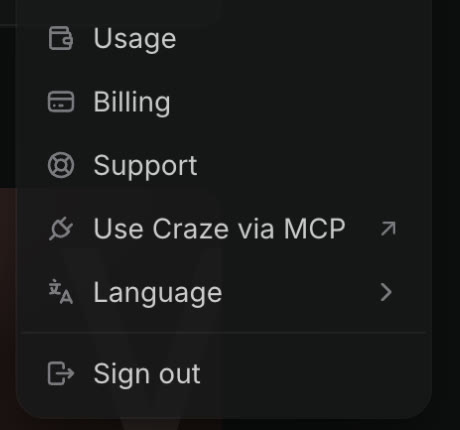
The Craze account menu, open, with Usage, Billing, Support, Use Craze via MCP, Language and Sign out.
The Craze account menu opens from your avatar.

What is a Craze workspace?

A Craze workspace is the account that holds your projects, credits and plan. Everyone in a workspace spends credits from the same balance, and the plan applies to the whole workspace. See plans and credits in Craze for what each plan includes.

Custom voices are also saved for the whole workspace. A voice you design and save appears under Workspace voices in Choose a voice in any project, and the Craze agent can narrate with it. A Craze workspace keeps up to 3 custom voices; delete one to make room for another.

Who can manage billing in a Craze workspace?

Only workspace admins can manage billing in Craze. Admins can change the plan, buy top-up credits, turn on Auto-reload and update payment details. Other members see "Only workspace admins can manage billing." in Billing, and if the workspace runs out of credits, Craze tells them to ask a billing admin to add credits.

How do you join someone else's Craze workspace?

You join a Craze workspace by accepting an invitation. The Craze app does not send invitations itself; the person who invites you does that outside the app.

  1. Sign in to Craze with the email address the invitation was sent to.
  2. Craze shows "You have an invitation" with the workspace's name.
  3. Click Accept. Craze opens that workspace.

Click Not now to decide later. If Craze says "Sign in with the email address this invitation was sent to.", sign out and sign in with that email. If the invitation is no longer available, ask the person who invited you for a new one.

How do you change the language of Craze?

The Craze app is available in English, 日本語 (Japanese), 한국어 (Korean) and Español (Spanish).

  1. Open the account menu from your avatar.
  2. Choose Language.
  3. Pick a language. Craze reloads the page in that language.

On your first visit Craze follows your browser's language, and after that it remembers the language you choose. On the craze.ai website, the globe menu switches the language of the website pages.

How do Craze notifications work?

Craze sends browser notifications so you can leave the tab while it works. Craze notifies you when:

  • The Craze agent asks you a question.
  • The Craze agent stops working on your project.
  • A generation you started yourself with Make, rather than through the Craze agent, finishes.

Your browser asks for permission the first time you use Craze. In Chrome and Edge the request appears when the page opens; in Safari and Firefox it appears on your first click. Allow it to get notifications, or block it and Craze will not ask again. To change your answer later, use your browser's site settings for craze.ai. On an iPhone or iPad, add Craze to your Home Screen and open it from there to get notifications. Signing out stops notifications on that browser.

How do you change your privacy preferences in Craze?

Craze keeps your privacy choices in Manage preferences in the account menu. Manage preferences appears only in regions where privacy rules give you a choice about tracking, so it may not be in your menu. Strictly Necessary storage is always on, because Craze needs it to work. Analytics and Advertising are optional and can be turned on or off. Click Save preferences to keep your choices. If your browser sends Global Privacy Control, Craze keeps optional tracking off.

How do you get help with your Craze account?

You reach the Craze team from Support in the account menu, which opens a chat. You can also email team@crazehq.com. For other problems, see fix a problem in Craze.

Questions people ask

Yes. The Craze app is available in English, Japanese, Korean and Spanish. Open the account menu, choose Language and pick one; Craze remembers your choice.

Yes. Credits belong to the Craze workspace, so everyone in the workspace spends from the same balance. Only workspace admins can buy credits or change the plan.

No. The Craze app does not send invitations. When someone invites you to their Craze workspace, Craze shows the invitation when you sign in, and you can accept it there.

Yes. Craze can send browser notifications when the Craze agent asks you a question, when the agent stops working, and when a generation you started finishes, so you can leave the tab while Craze works.

PreviousConnect your AI agent to CrazeNextFix a problem
Table of contents
  • What is in the Craze account menu?
  • What is a Craze workspace?
  • Who can manage billing in a Craze workspace?
  • How do you join someone else's Craze workspace?
  • How do you change the language of Craze?
  • How do Craze notifications work?
  • How do you change your privacy preferences in Craze?
  • How do you get help with your Craze account?
  • Direct
  • Create
  • Edit
  • Models
  • Pricing
  • MCP
  • Contact us
  • Docs
  • Blogs
  • Changelog
  • Privacy
  • Terms
  • Instagram
  • YouTube
  • X
  • LinkedIn
  • English
  • 日本語
  • 한국어
  • Español
  • Deutsch
  • Français
  • Português
  • 简体中文

© 2026 Craze Technologies